Verify and allow a task in Shortcuts
Categories:
Synchronize Tasks only runs tasks you have approved:
- In RsyncUI, select the task and open the Verify tab.
- Choose Verify Task and check the result.
- Click Not allowed in Shortcuts in the toolbar. It turns into a green Allowed in Shortcuts, and the task gets a green checkmark in the task list.
Changing what the task does (source, destination, server, user, rsync or SSH options) removes the approval, so the task must be verified again. Renaming the task does not.
The Verify tab
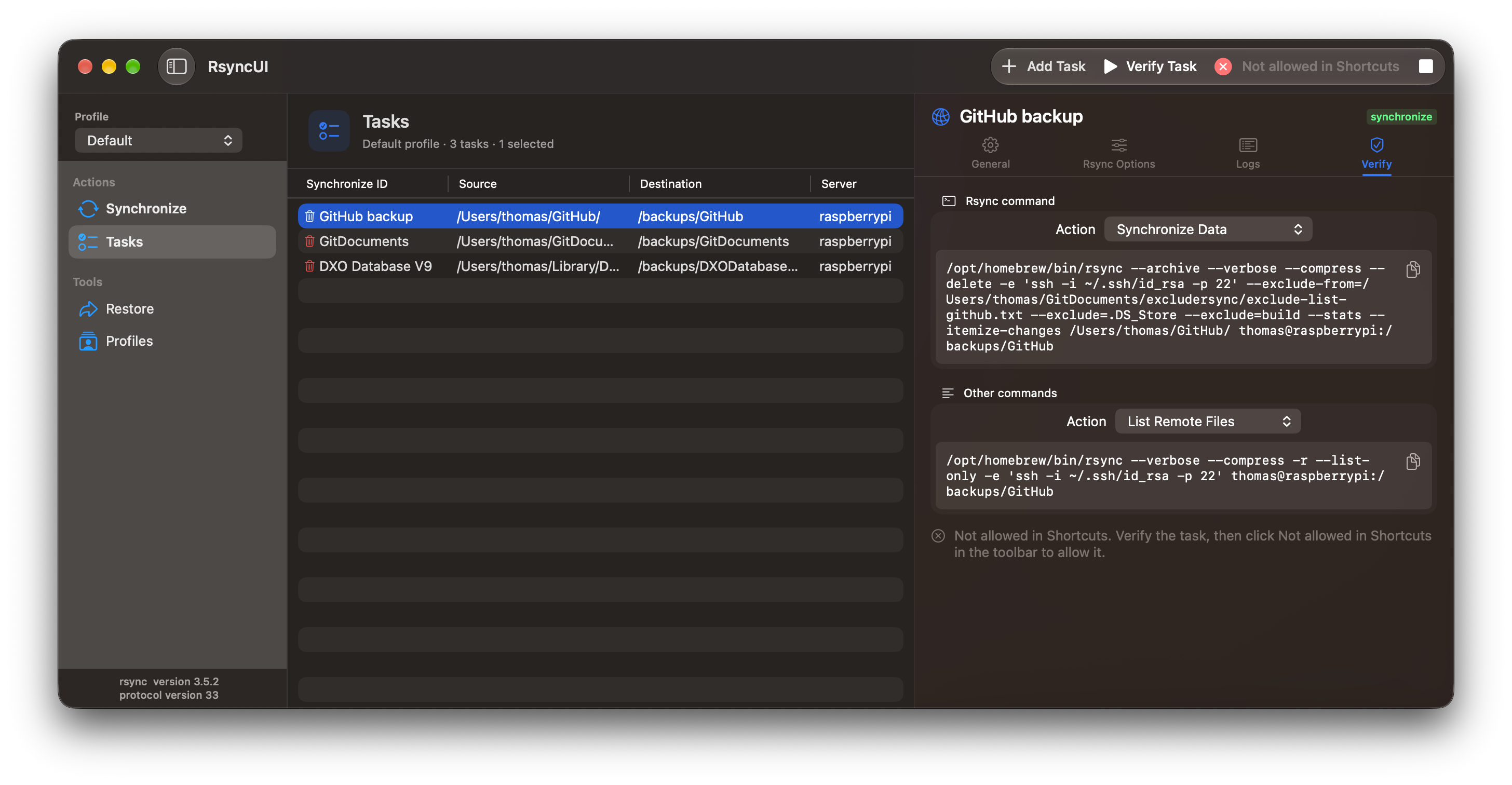
The Verify tab shows the exact rsync command for the selected action, and other commands such as List Remote Files, each with a copy button. The task is Not allowed in Shortcuts yet. The toolbar has Verify Task and the red Not allowed in Shortcuts toggle.
Verify Task
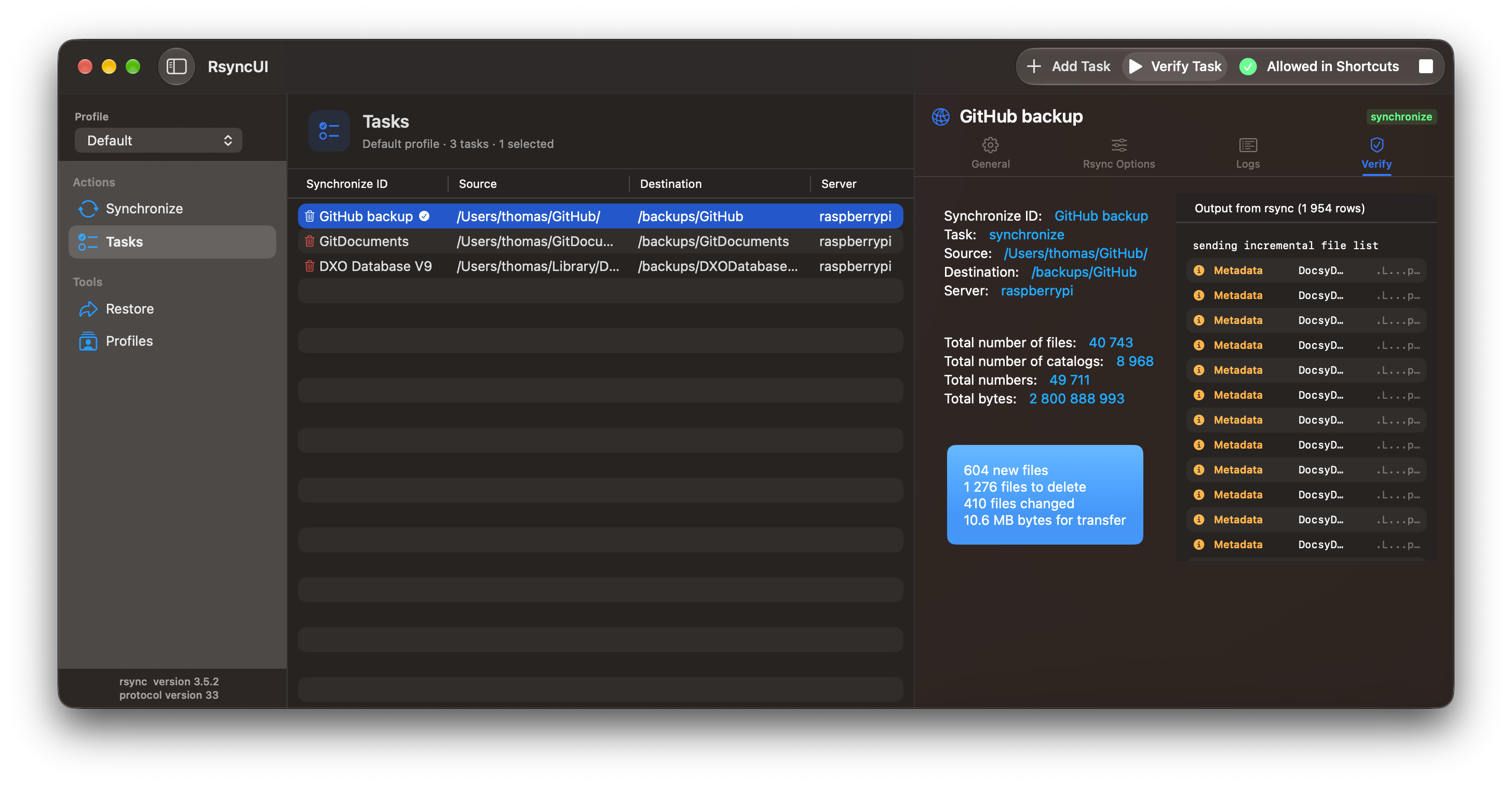
Verify Task runs a dry run of the task and shows the result: totals for files, catalogs and bytes, a summary of new, deleted and changed files, and the rsync output. After checking the result, click Not allowed in Shortcuts to allow the task. The toolbar now shows a green Allowed in Shortcuts, the task gets a checkmark in the task list, and clicking the toggle again removes the approval.
Feedback
Was this page helpful?
Glad to hear it! Please tell us how we can can improve.
Sorry to hear that. Please tell us how we can can improve.