Important
Categories:
Before using RsyncUI, review these key notes.
The interface may feel challenging if you are new to the rsync command-line tool. RsyncUI focuses on making rsync easier to use, not on teaching every rsync concept.
Not a backup tool for everyone
RsyncUI specializes in synchronization and file management. The command-line tool rsync performs the actual work. If you need a full system backup tool that creates complete disk images, RsyncUI is not the right fit.
Delete parameter
The --delete parameter keeps the destination in exact sync with the source. When a file is removed from the source, rsync removes it from the destination. With --delete disabled, the destination will accumulate files removed from the source.
Know whether --delete is on or off before you run; it controls whether the destination mirrors the source.
As a safety precaution, --delete is not enabled by default on new tasks. Turn it on if you need the destination to mirror the source.
Add and remove the delete parameter
Select Parameters tab within the Tasks menu, select the task, and toggle Add –delete parameter (ON means included). After toggling, remember to update the task.
- if ON, the –delete parameter is included
- if OFF, the –delete parameter is removed
Always verify new task
Before running a new task, perform a --dry-run and inspect the result. If you set an empty source and --delete is enabled, rsync will delete all files in the destination.
Incorrect rsync parameters can delete data, and RsyncUI does not block such choices. See Getting started or Tasks for how to verify a task before running it.
Temporary halt tasks
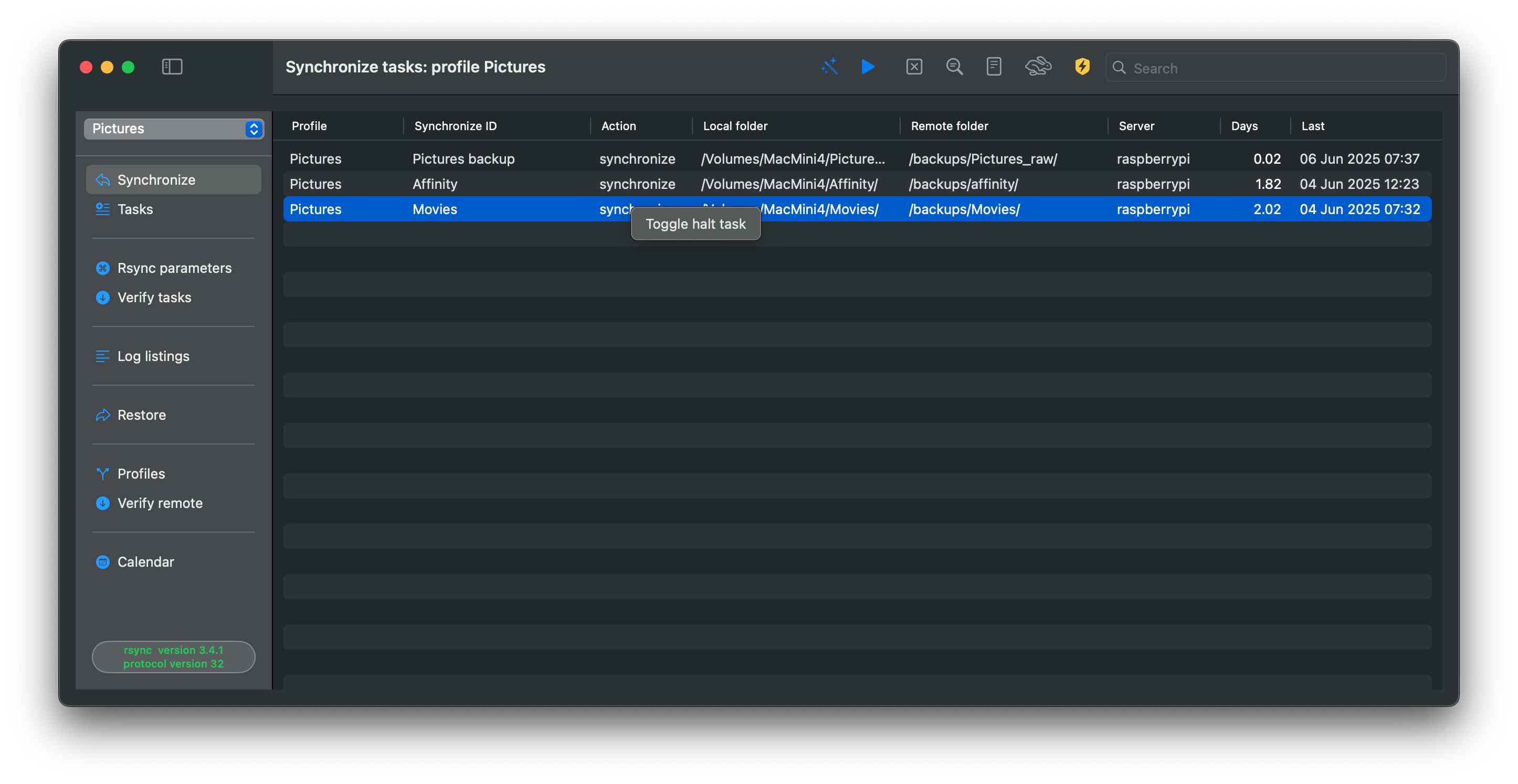
You can temporarily halt a task. In the Synchronize view, right-click a task to halt it; the task keeps its type when resumed. Halted tasks display a red stop sign in the action column.
Two options to save updates to data
These options apply to the data synchronized by RsyncUI. By enabling either of these options, you can save changes to data, such as deletions or updates, prior to a synchronization task.
There are two options to automatically save changes to data when it is changed or deleted.
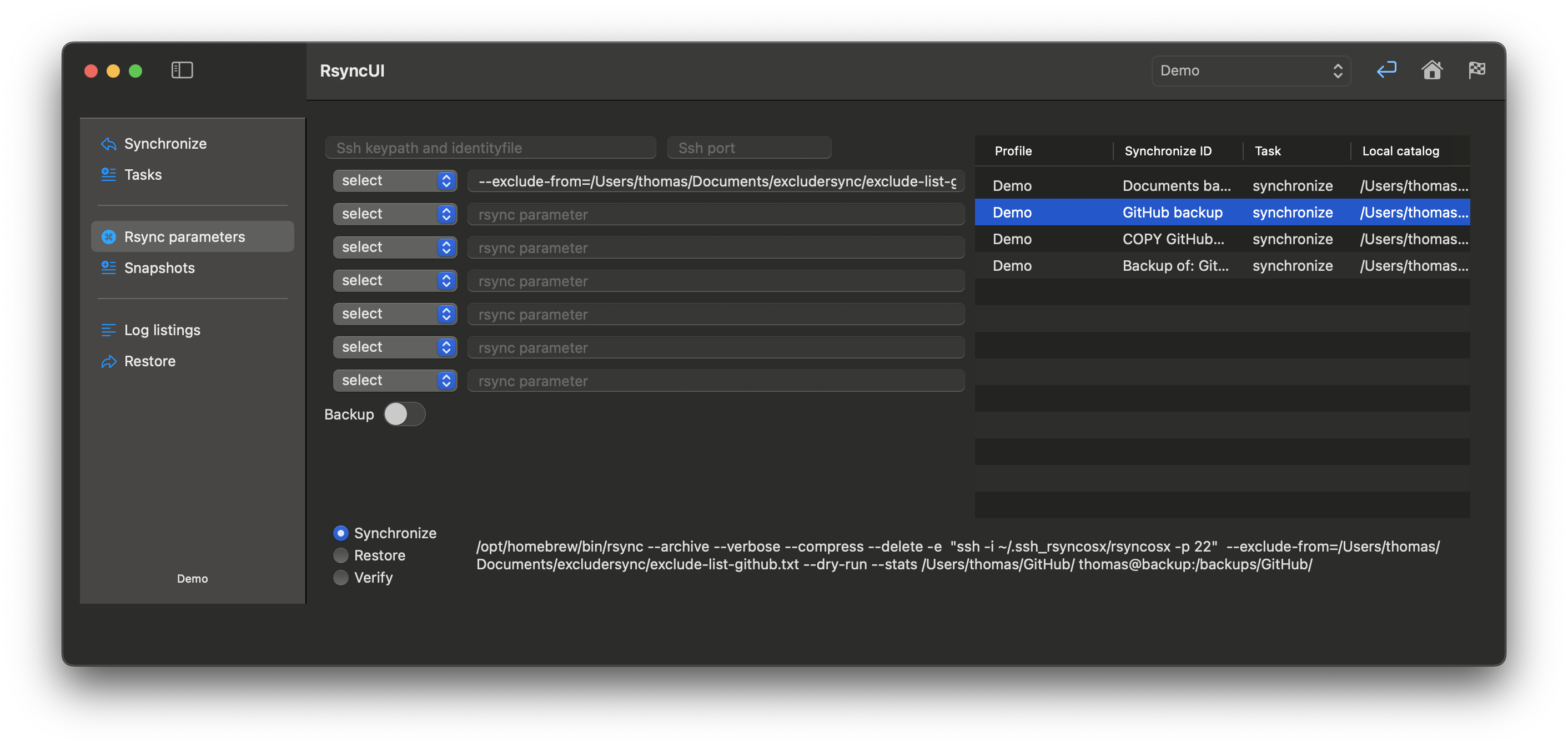
Option 1: rsync supports a backup flag. Switching this on in the Rsync parameters view adds the required parameters. You may change the backup directory to any location you want.
Option 2: Snapshots require rsync 3.x. See Snapshots for details on enabling and using them.
Feedback
Was this page helpful?
Glad to hear it! Please tell us how we can improve.
Sorry to hear that. Please tell us how we can improve.