Schedule
Categories:
The schedule function is disabled by default. Please refer to the RsyncUI settings, Monitor and log section to enable it.
Schedules are saved automatically. RsyncUI loads tasks that are due. Tasks scheduled while the Mac was shut down are not loaded. If the Mac sleeps, missed tasks appear in the Schedule view. Missed tasks do not run automatically.
The scheduler uses the Timer library. According to Apple: “A timer that fires after a certain time interval has elapsed, sending a specified message to a target object.” The timer has a strong reference to the run loop on the main thread. If the app goes to sleep, so does the run loop. The timer is active only while RsyncUI is running.
If the Mac sleeps before scheduled tasks execute, they will appear in the Schedule view.
Add Schedule
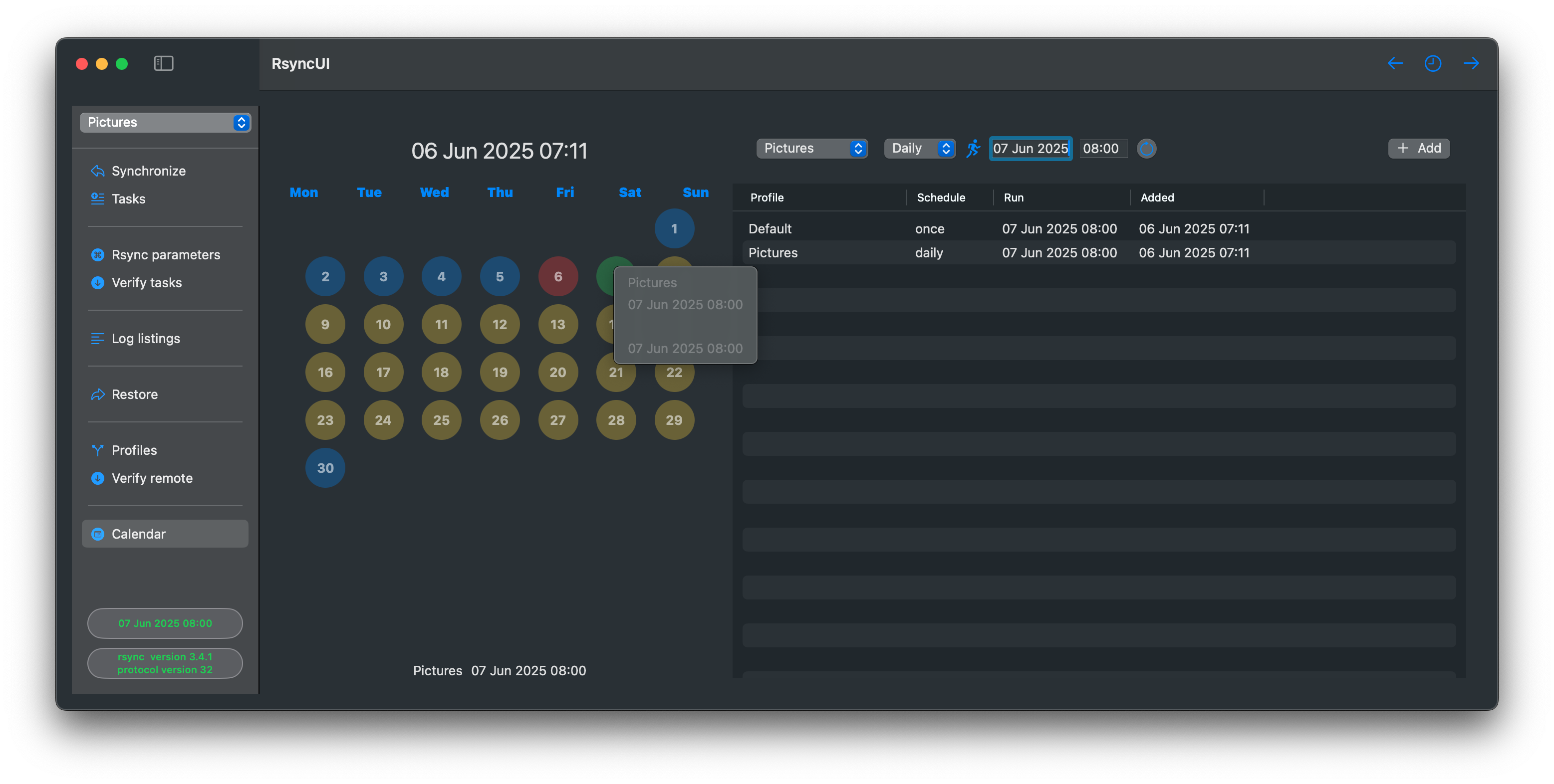
To add a schedule, click on the date, set the time, and schedule the task. When a schedule is active, the user is notified in the sidebar or on the toolbar when the sidebar is hidden. Right-clicking on a date will present schedules by date.
Tasks added to the schedule are validated. The planned next task schedule must either:
- be at least 10 minutes after the first schedule in queue
- the first schedule in queue is always later than the current time
- be within 10 minutes before the first schedule in queue
- the planned next schedule must also be later than the current time
The Schedule function is designed to handle Mac sleep mode:
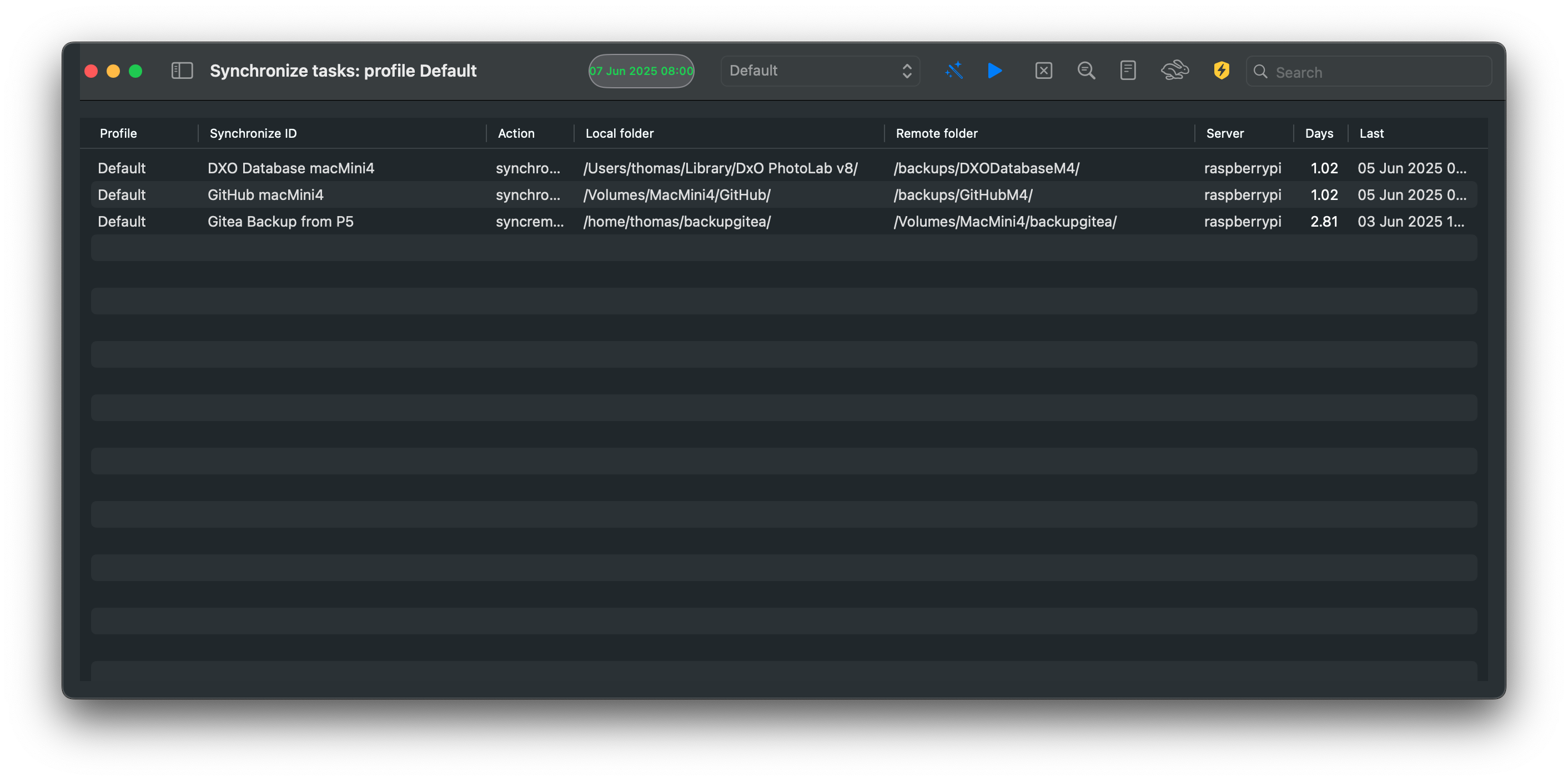
- when a scheduled task is not executed because the Mac enters sleep mode, the Schedule function retrieves missed tasks and displays them in a table
- the user can move the missed tasks back to the schedule table
The Schedule view visually distinguishes invalid times in red font. Only validated task schedules are incorporated into the schedule.
Delete Schedules
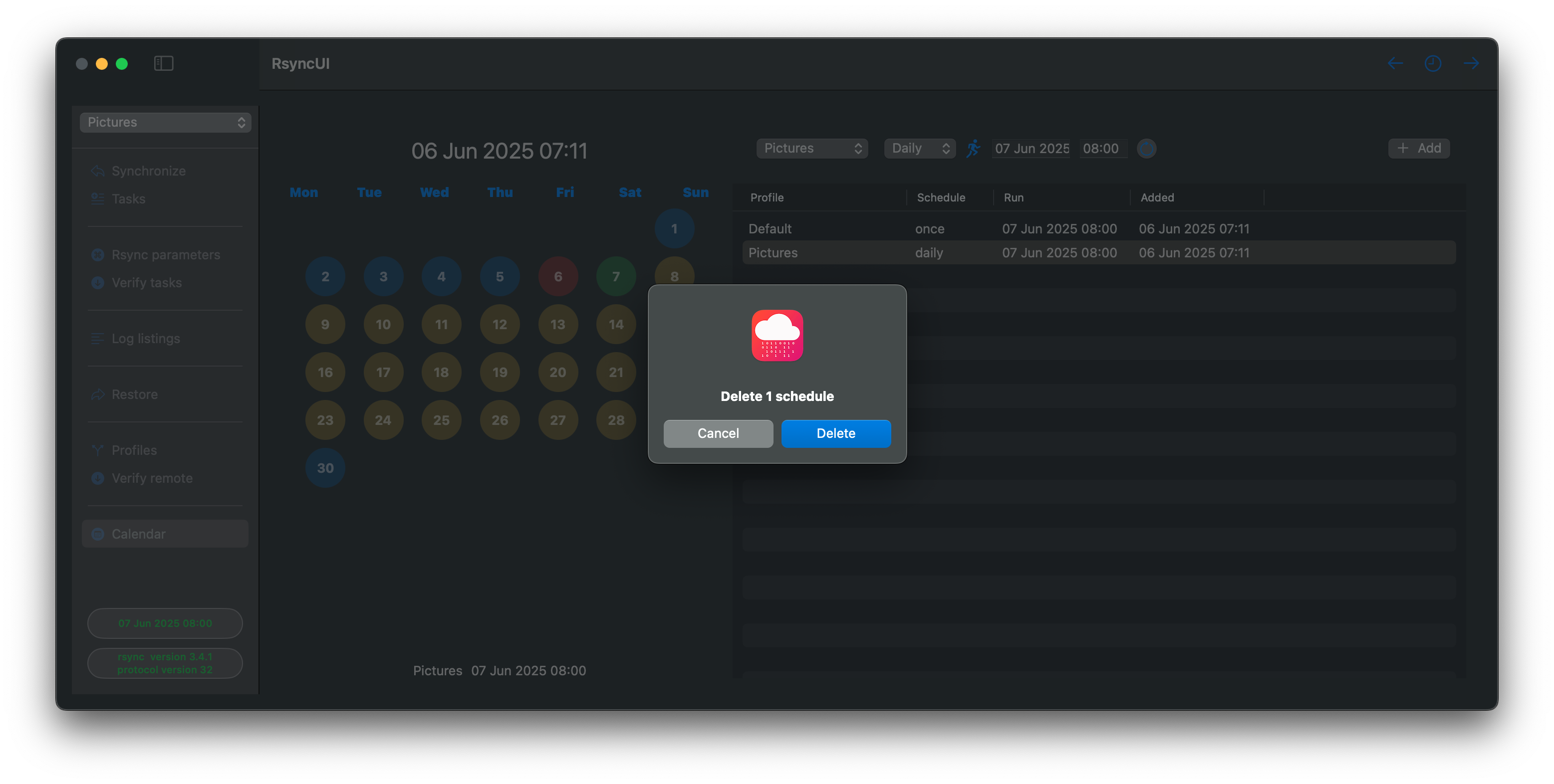
Select one or more schedules and press the backspace key.
Feedback
Was this page helpful?
Glad to hear it! Please tell us how we can improve.
Sorry to hear that. Please tell us how we can improve.