This is a test release.RsyncUI 4.0.0 is a test version, planned for release in some weeks. It is published in RsyncUI-next so it can be tested before it is merged into RsyncUI. Please report problems in the RsyncUI-next issues.
What is new
A redesigned interface
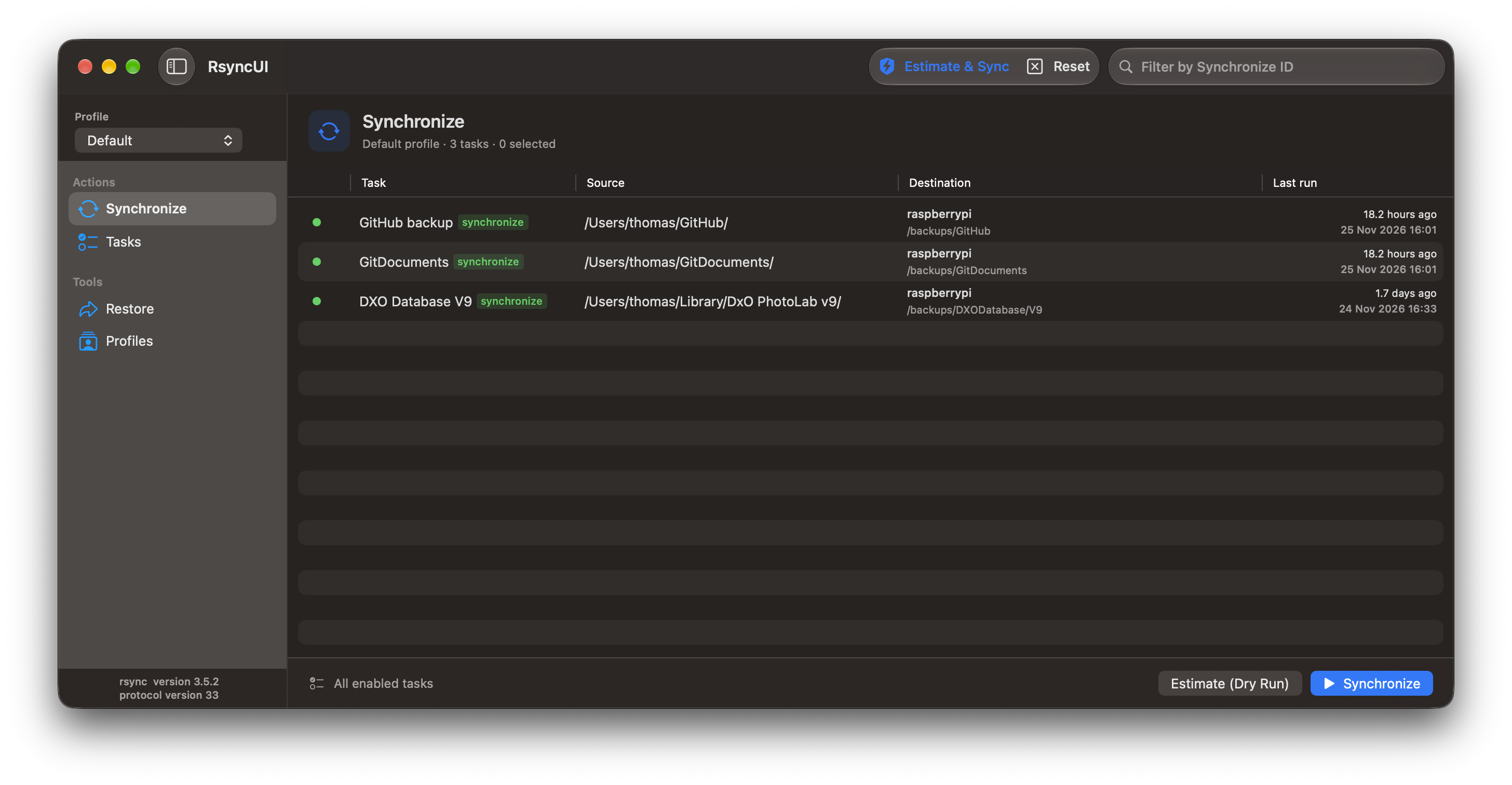
Synchronize and Tasks workspaces are rebuilt around the task table, with a persistent preview and run bar, and the synchronization progress shown below the table.
A task inspector for the selected task, with General, Rsync Options, Logs and Verify tabs.
Clearer task setup: the task direction and its source and destination are summarised while you create or edit a task.
Safer runs:
the run confirmation shows where data goes and which deletion options are in effect
a warning when deletion (--delete) is enabled
confirmation is required when a dry run cannot determine the changes
only estimated tasks are synchronized after an incomplete preview
Restore, Snapshots and Profiles follow the same layout as the main workspace.
Languages: Traditional Chinese (zh-Hant) is new, and Simplified Chinese (zh-Hans) is updated for the new interface.
Shortcuts, Siri and Spotlight
RsyncUI can now be used from the Shortcuts app, Siri and Spotlight, without opening the RsyncUI window. RsyncUI quits by itself when the action is done.
Action
What it does
Estimate Tasks
A dry run of a profile, or of selected tasks. Reports files to transfer, size and files to delete. Changes nothing, and works for every task.
Synchronize Tasks
Estimates first, then synchronizes the tasks that have changes, following each task’s own --delete setting. Writes log records like a run in RsyncUI.
Tasks must be verified and allowed in RsyncUI before Synchronize Tasks runs them. See Verify and allow a task and Shortcuts, Siri and Spotlight below.
Before you test
Back up your settings. RsyncUI keeps its tasks, logs and settings in ~/.rsyncosx. Copy that folder first:
cp -R ~/.rsyncosx ~/rsyncosx-backup
Going back to 3.5. Version 3.5 ignores the Shortcuts approvals and drops them if it saves the tasks, so they must be allowed again in 4.0.0. If anything else looks wrong after going back, restore your backup.
Homebrew installs the stable version. To test 4.0.0, download it from the RsyncUI-next releases.
Step by step
The pages below follow one session in order: estimating and synchronizing in the new interface, inspecting a task, allowing it in Shortcuts, running it from the Shortcuts app, and checking the result.
1 - Synchronize and estimate
The new Synchronize workspace and the Estimate (Dry Run) result.
The Synchronize workspace
The main window opens in Synchronize. The sidebar holds the profile picker, Actions (Synchronize, Tasks) and Tools (Restore, Profiles), with the rsync version at the bottom. The task table shows each task with its source, destination (server and path) and when it last ran. The run bar at the bottom has Estimate (Dry Run) and Synchronize, and the toolbar has Estimate & Sync, Reset and a filter by Synchronize ID.
Estimate (Dry Run)
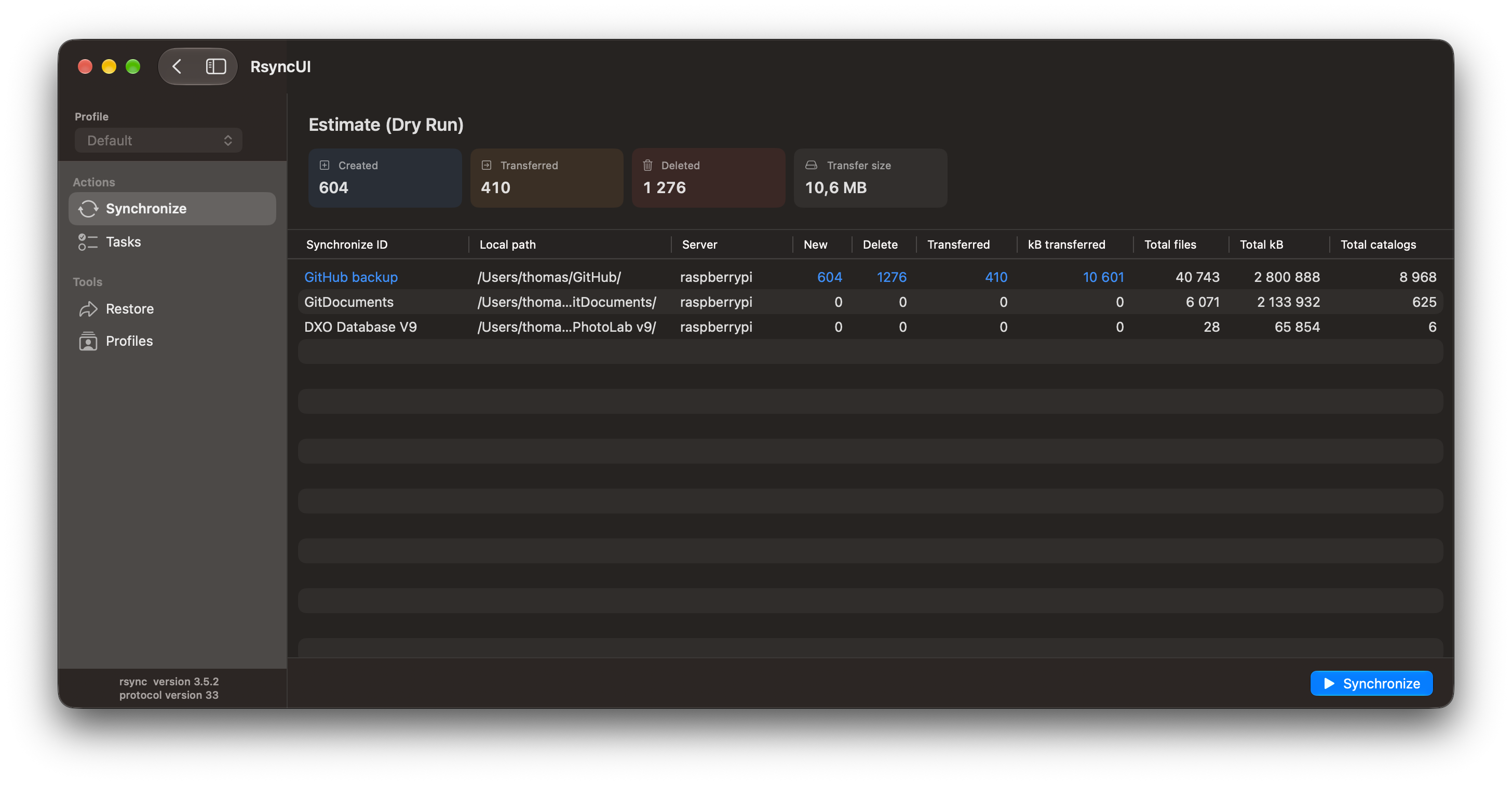
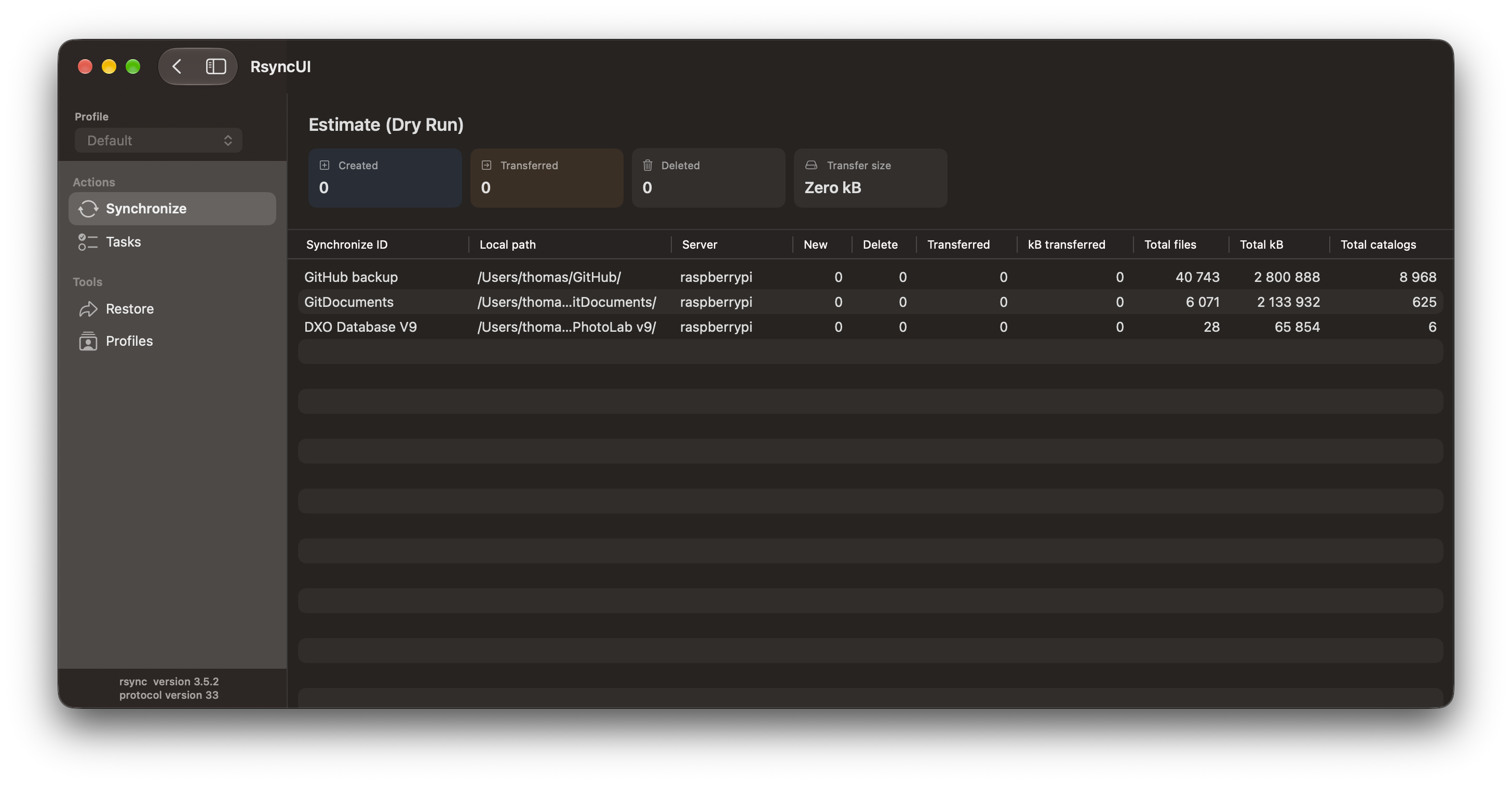
The result of an estimate. Summary cards at the top show files Created, Transferred, Deleted and the Transfer size for all tasks. The table shows the numbers per task; tasks with changes are highlighted in blue. Here only GitHub backup has changes. Click Synchronize to run the estimated tasks.
2 - Tasks and the task inspector
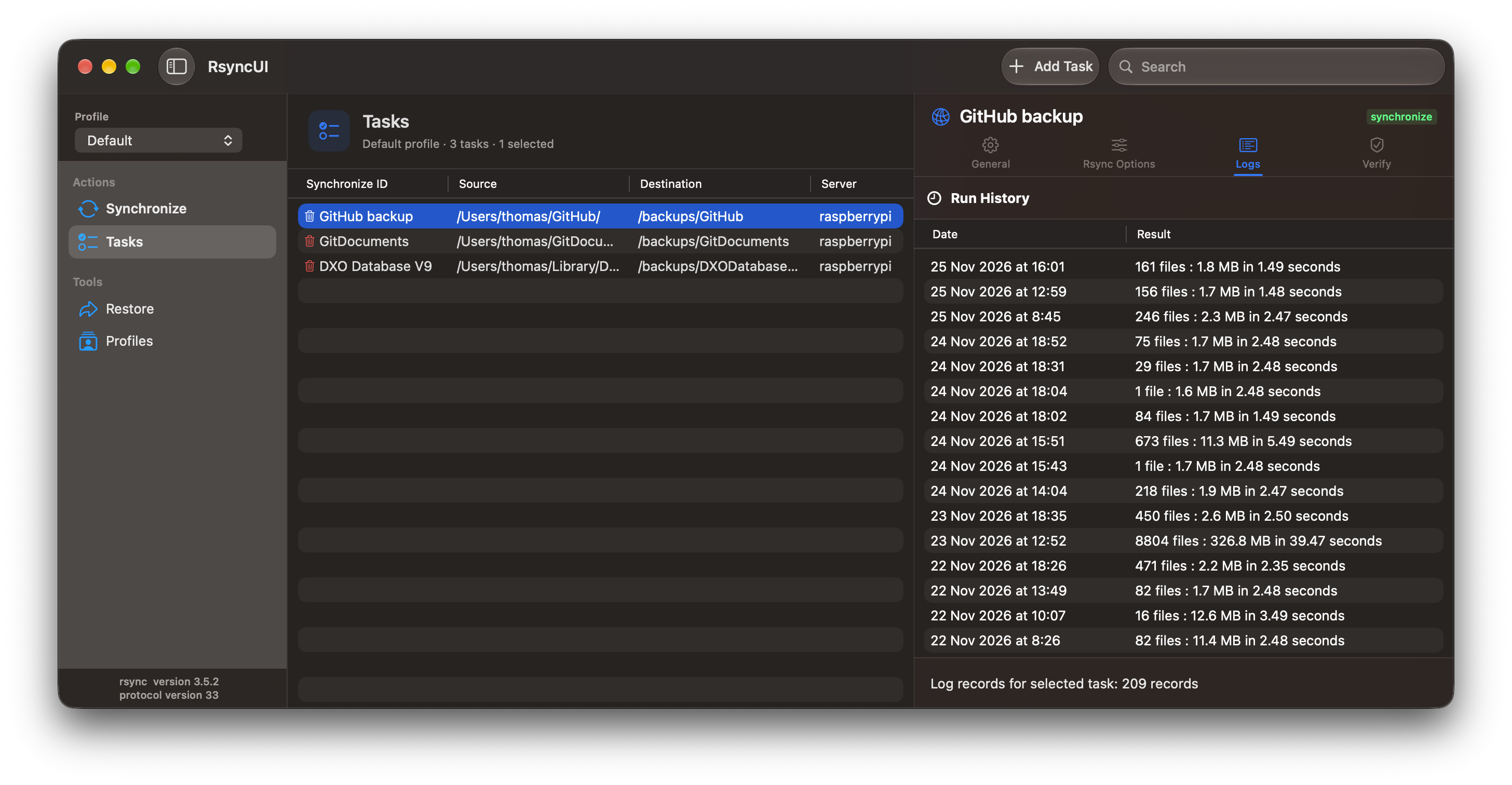
The Tasks workspace and the General, Rsync Options and Logs tabs of the inspector.
General
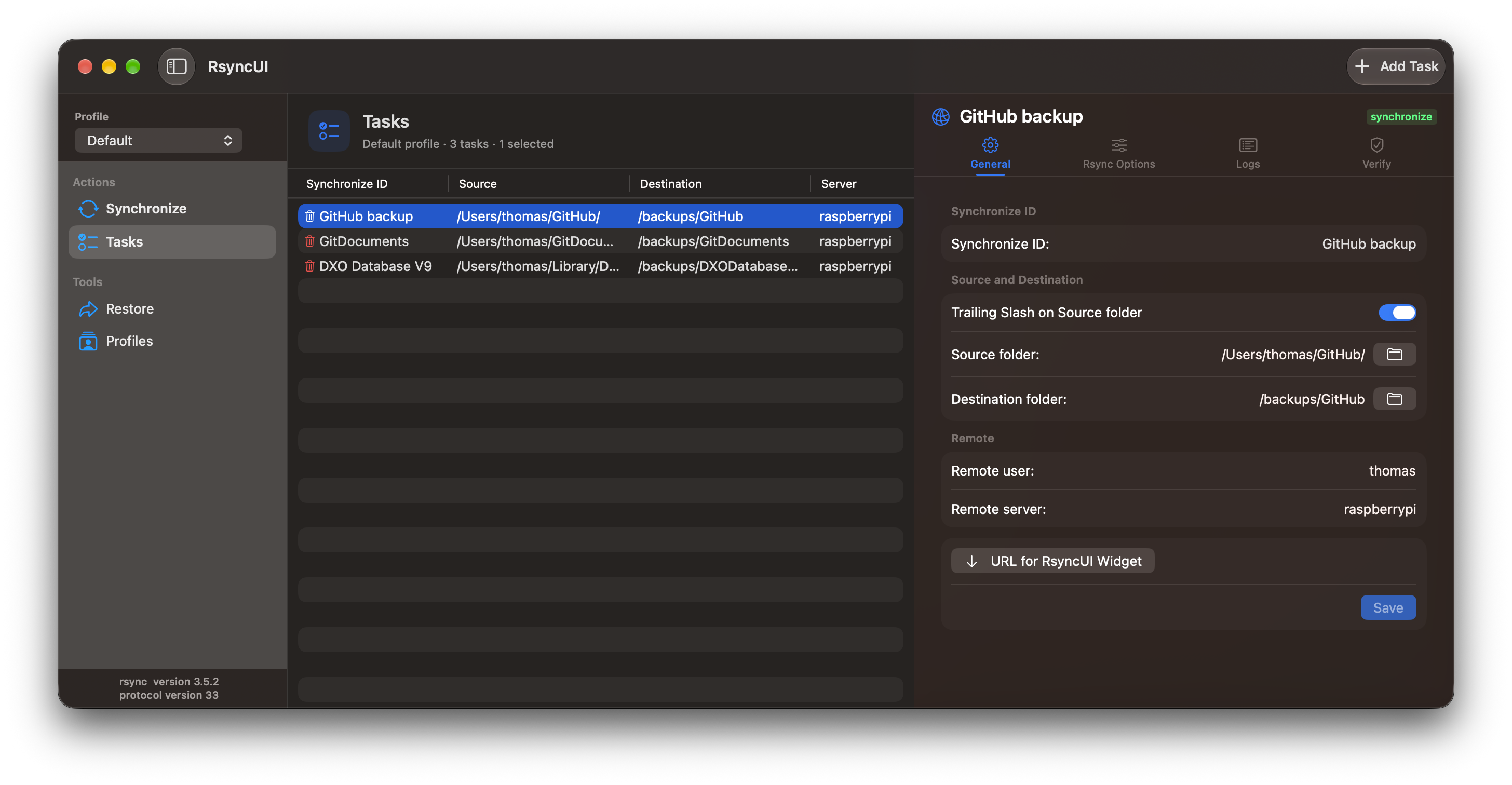
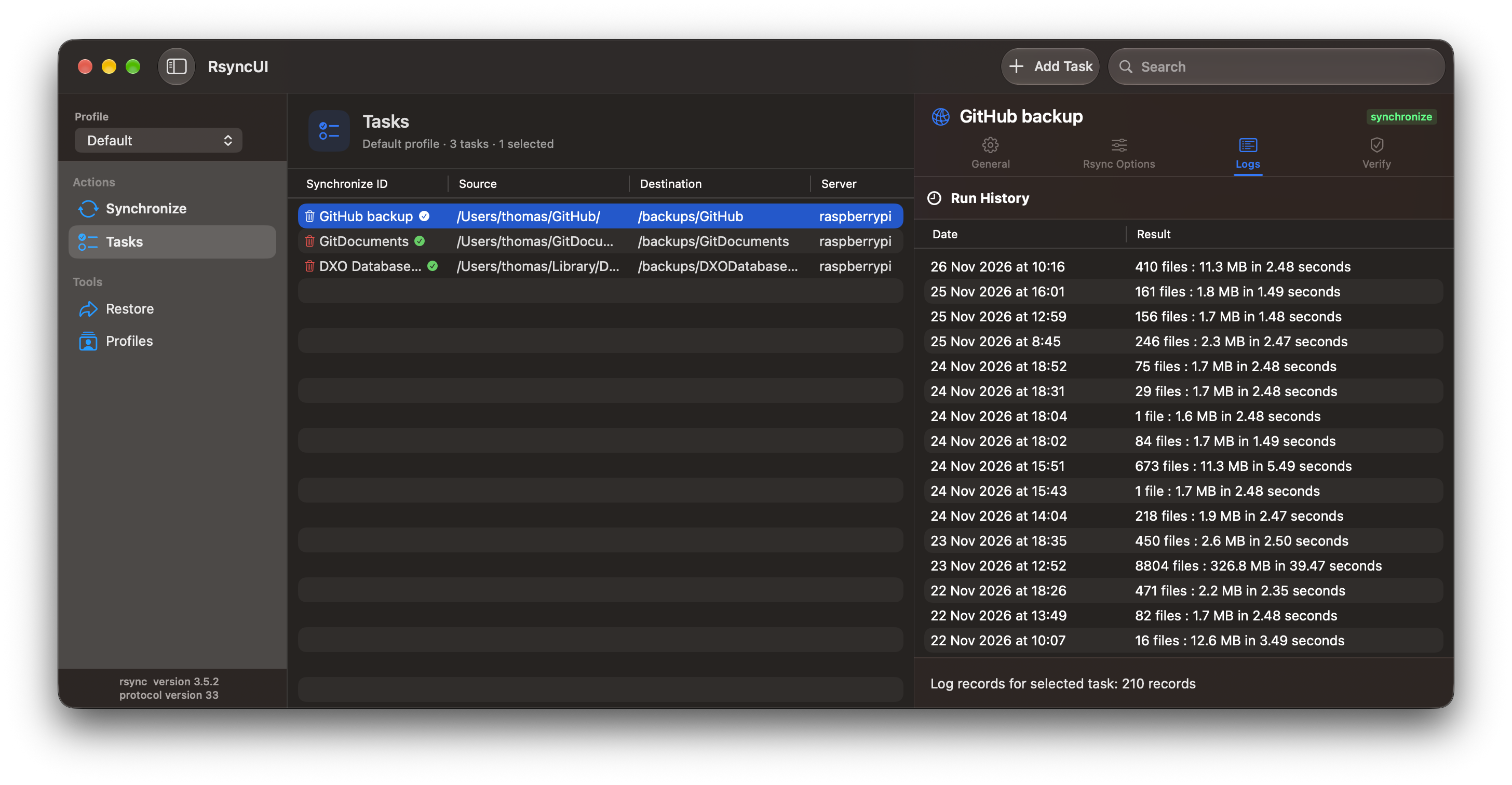
In Tasks, selecting a task opens the inspector on the right. The General tab holds the Synchronize ID, the trailing slash on the source folder, source and destination folders, remote user and server, and the button for the RsyncUI Widget URL. New tasks are created with Add Task in the toolbar.
Rsync Options
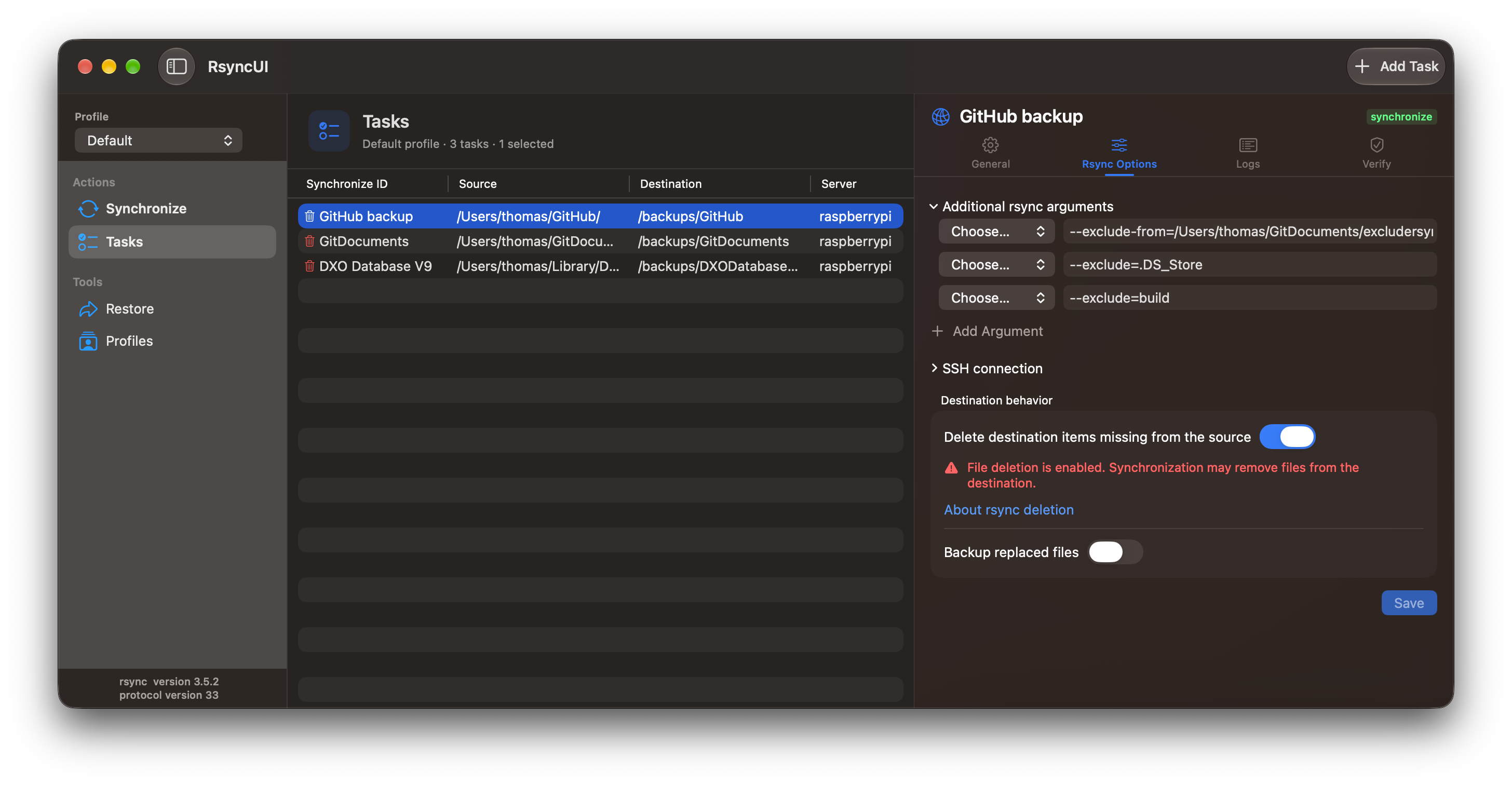
The Rsync Options tab lists additional rsync arguments (here exclude rules), the SSH connection settings and the Destination behavior. When Delete destination items missing from the source (--delete) is on, a red warning says that synchronization may remove files from the destination.
Logs
The Logs tab shows the run history of the selected task: date, number of files, size and time used. The footer shows the number of log records for the task.
3 - Verify and allow a task in Shortcuts
Verify a task and allow it to be synchronized from Shortcuts.
Synchronize Tasks only runs tasks you have approved:
In RsyncUI, select the task and open the Verify tab.
Choose Verify Task and check the result.
Click Not allowed in Shortcuts in the toolbar. It turns into a green Allowed in Shortcuts, and the task gets a green checkmark in the task list.
Changing what the task does (source, destination, server, user, rsync or SSH options) removes the approval, so the task must be verified again. Renaming the task does not.
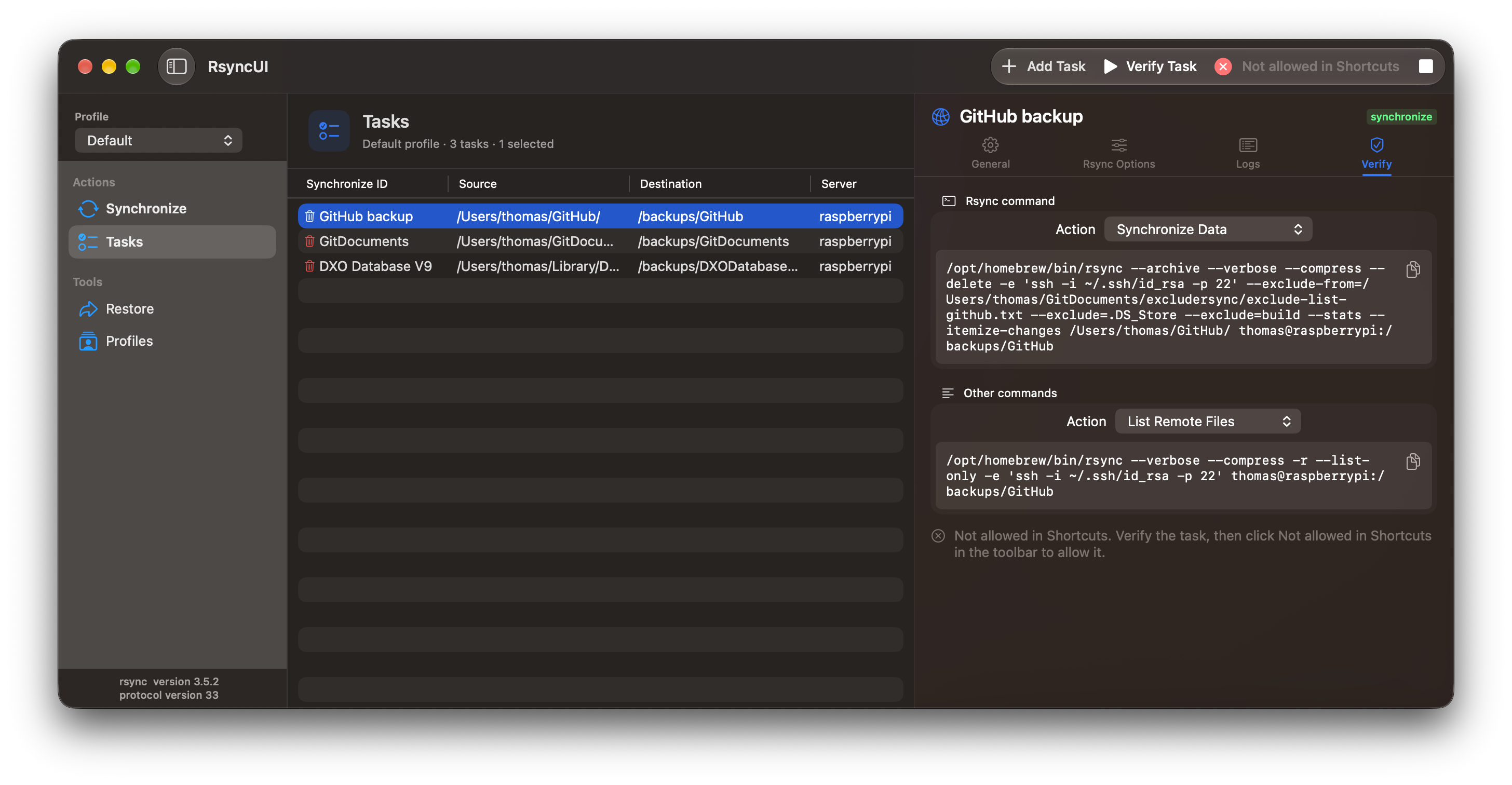
The Verify tab
The Verify tab shows the exact rsync command for the selected action, and other commands such as List Remote Files, each with a copy button. The task is Not allowed in Shortcuts yet. The toolbar has Verify Task and the red Not allowed in Shortcuts toggle.
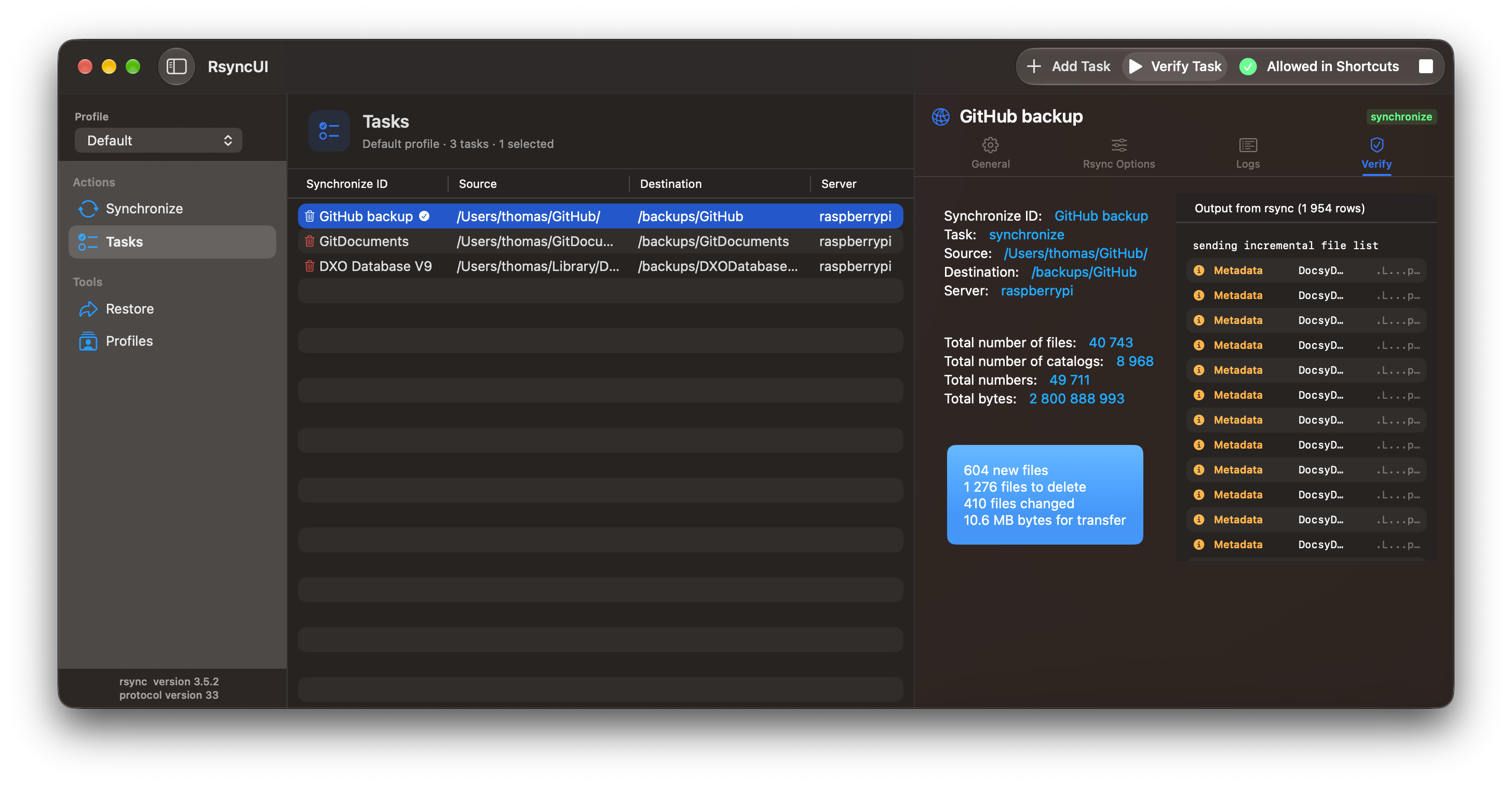
Verify Task
Verify Task runs a dry run of the task and shows the result: totals for files, catalogs and bytes, a summary of new, deleted and changed files, and the rsync output. After checking the result, click Not allowed in Shortcuts to allow the task. The toolbar now shows a green Allowed in Shortcuts, the task gets a checkmark in the task list, and clicking the toggle again removes the approval.
4 - Shortcuts, Siri and Spotlight
Create and run a Synchronize Tasks shortcut in the Shortcuts app.
RsyncUI adds two actions to the Shortcuts app. They also work from Siri and Spotlight, without opening the RsyncUI window, and RsyncUI quits by itself when the action is done.
Action
What it does
Estimate Tasks
A dry run of a profile, or of selected tasks. Reports files to transfer, size and files to delete. Changes nothing, and works for every task.
Synchronize Tasks
Estimates first, then synchronizes the tasks that have changes, following each task’s own --delete setting. Writes log records like a run in RsyncUI.
Synchronize Tasks only runs tasks that are allowed in Shortcuts (see Verify and allow a task). Before synchronizing, it also stops when:
the source folder of a task with --delete is missing or empty, for example a disconnected drive
Confirm execute is turned on in Settings and the estimate needs confirmation
the estimate shows more deletions than the optional Maximum Deletions in the shortcut
RsyncUI is already running a task
The actions, messages and Siri phrases are available in English, Simplified Chinese and Traditional Chinese. Example Siri phrases: “Estimate Documents in RsyncUI” and “Synchronize Documents with RsyncUI”, where Documents is a profile name.
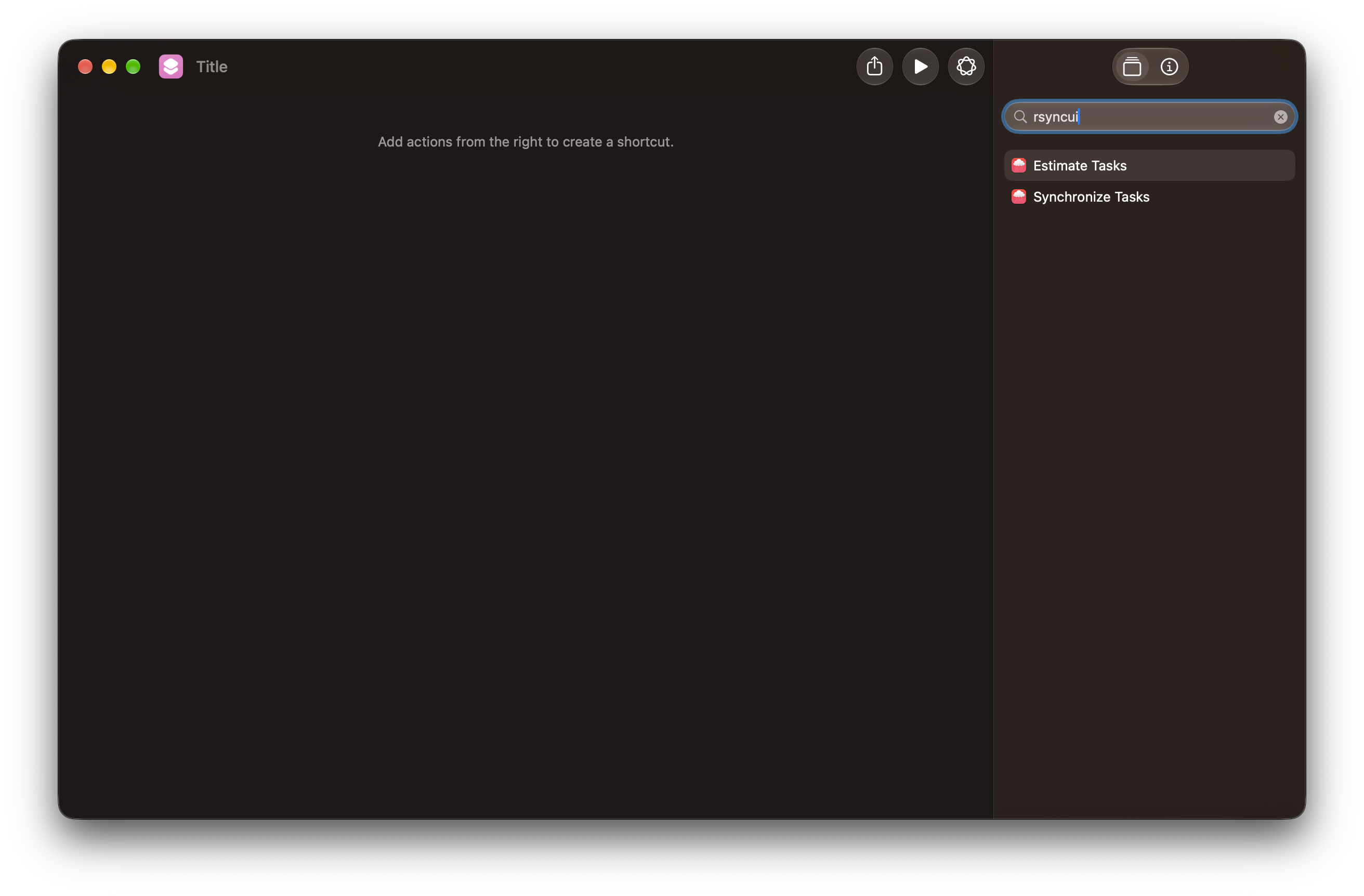
RsyncUI actions in Shortcuts
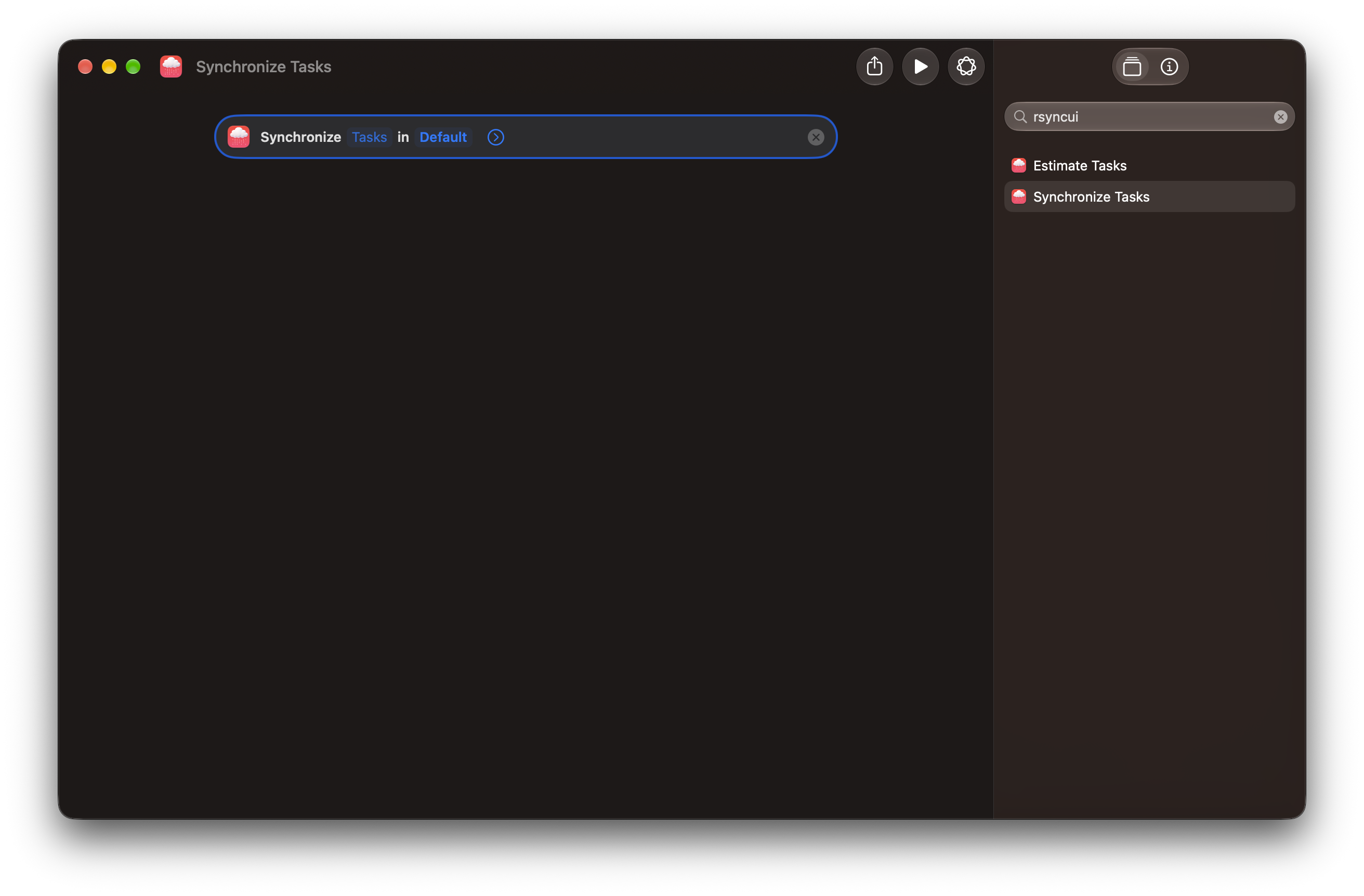
In the Shortcuts app, search for rsyncui to find the two RsyncUI actions: Estimate Tasks and Synchronize Tasks.
Create a Synchronize Tasks shortcut
Adding Synchronize Tasks creates the action Synchronize Tasks in Default. Choose the profile, and optionally the tasks (leave empty for all tasks in the profile). The expand arrow shows more options, such as Maximum Deletions.
The shortcut in the library
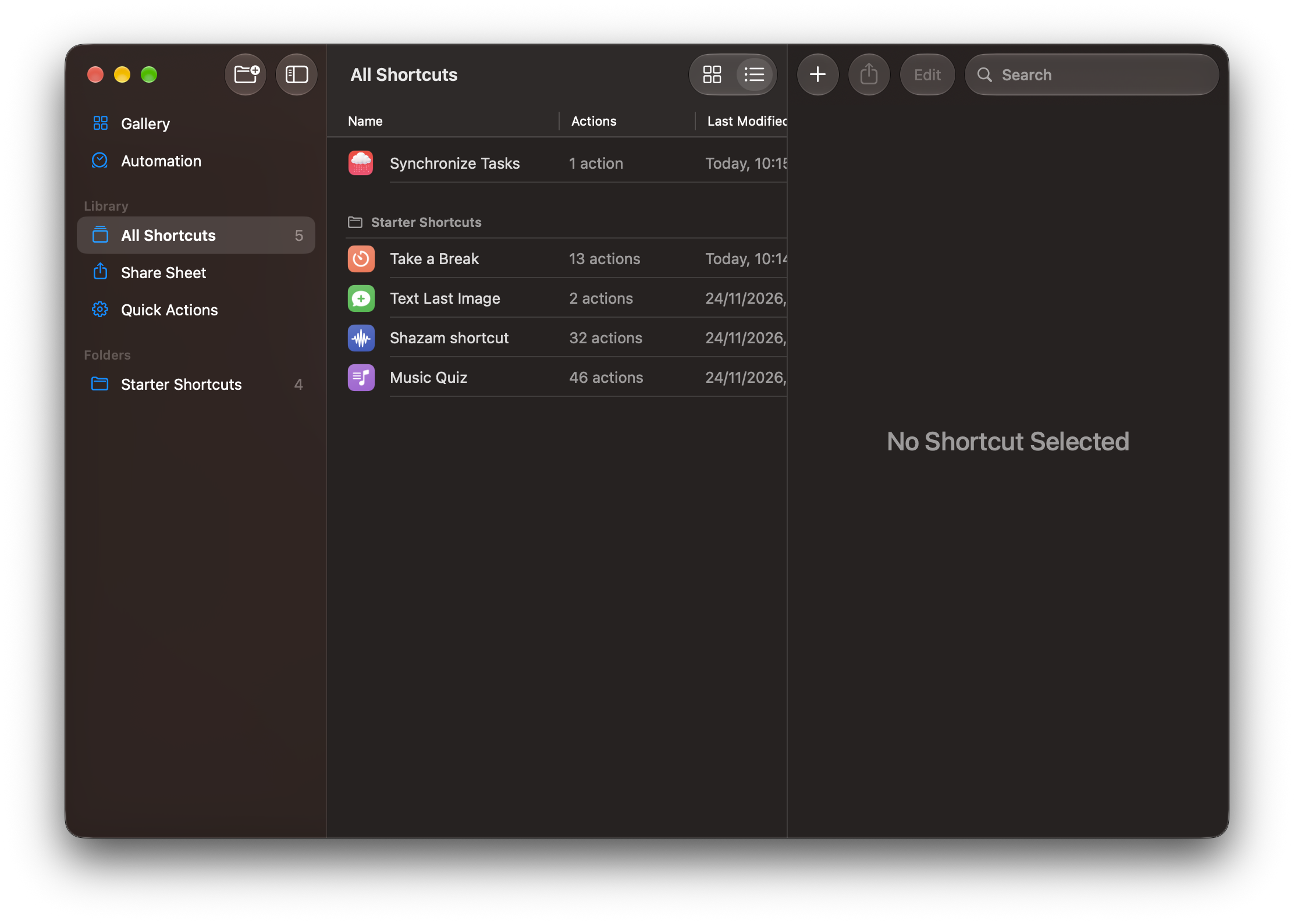
The new shortcut appears under All Shortcuts and can be run from the Shortcuts app, Siri or Spotlight.
Tasks not allowed
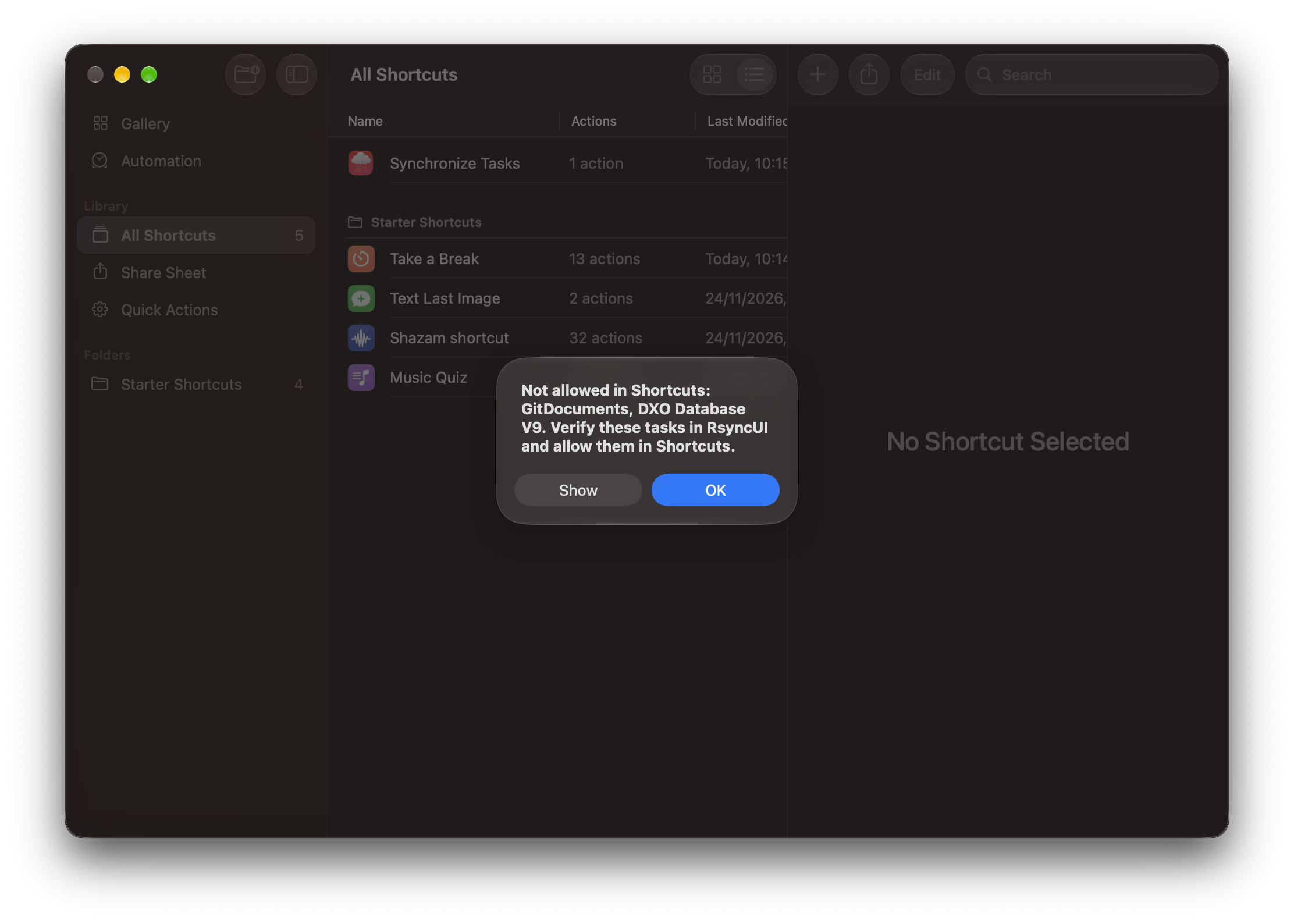
Running the shortcut while only GitHub backup is allowed stops with a message listing the tasks that are not allowed (GitDocuments and DXO Database V9), asking you to verify them in RsyncUI and allow them in Shortcuts.
All tasks allowed
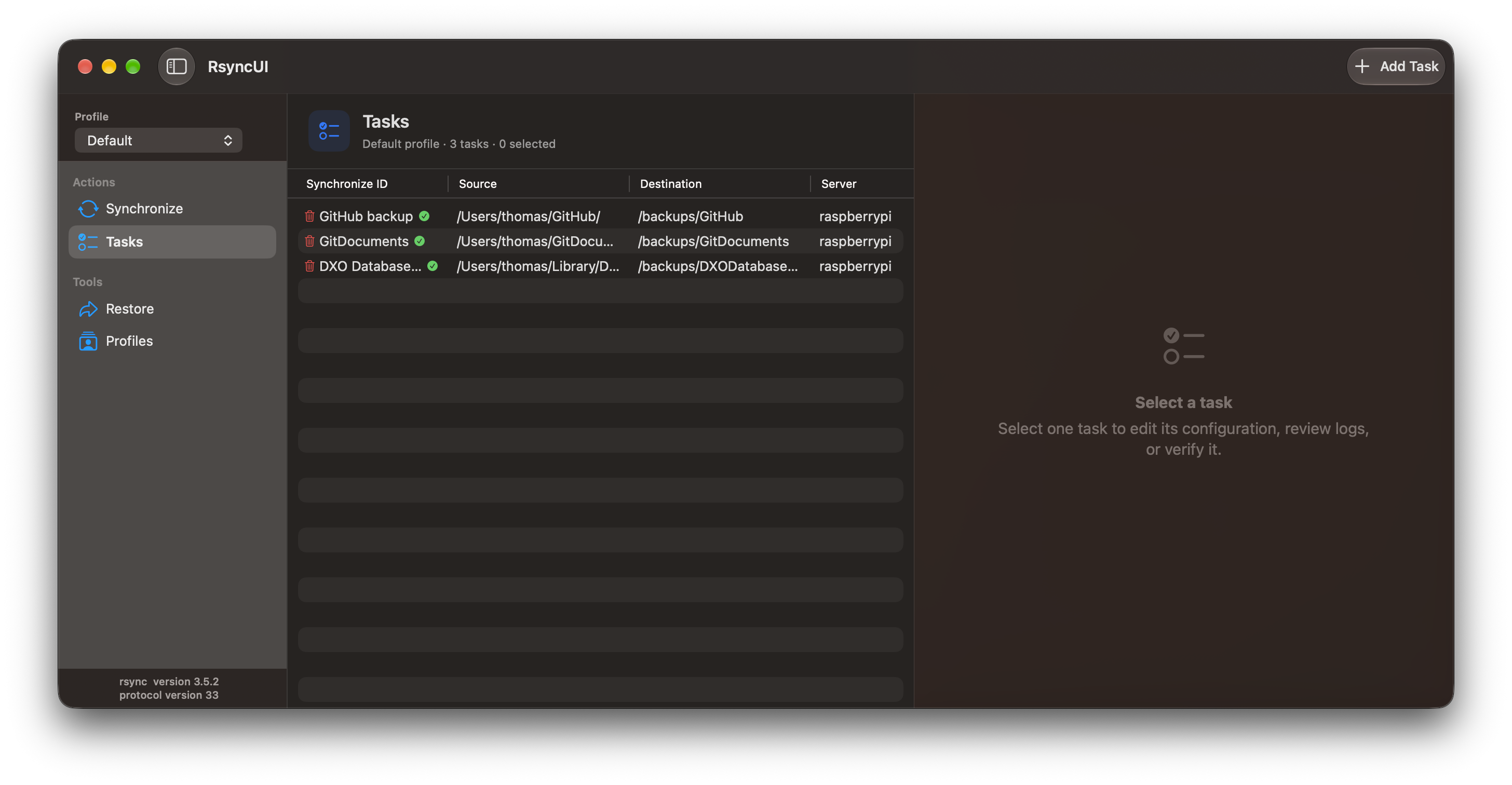
After verifying and allowing the remaining tasks, every task in the list has a green checkmark. With no task selected, the inspector says Select a task.
5 - After a shortcut run
Check the result of a shortcut run in RsyncUI.
Estimate after the run
The shortcut now runs without the message. RsyncUI estimates the tasks, synchronizes the ones with changes and quits by itself when done. A new estimate in RsyncUI afterwards shows zero changes for all tasks: the shortcut has synchronized GitHub backup.
The log record
The Logs tab for GitHub backup has a new record at the top (410 files : 11.3 MB), written by the shortcut run just like a run inside RsyncUI.