How to add, edit, and manage tasks in RsyncUI. Always verify a new task with a --dry-run before executing it.
This is the multi-page printable view of this section. Click here to print.
Tasks
- 1: New tasks
- 2: Update tasks
1 - New tasks
A task requires a minimum of a source directory and a destination directory. The destination can be a local attached disk or a remote server.
Always verify the result of a new task before executing. Select “Verify tasks” from the primary Sidebar menu.
Pressing the Enter key will advance to the next field. Pressing the Enter key will automatically add a new task after the last input. Tasks are saved to permanent storage after each entry.
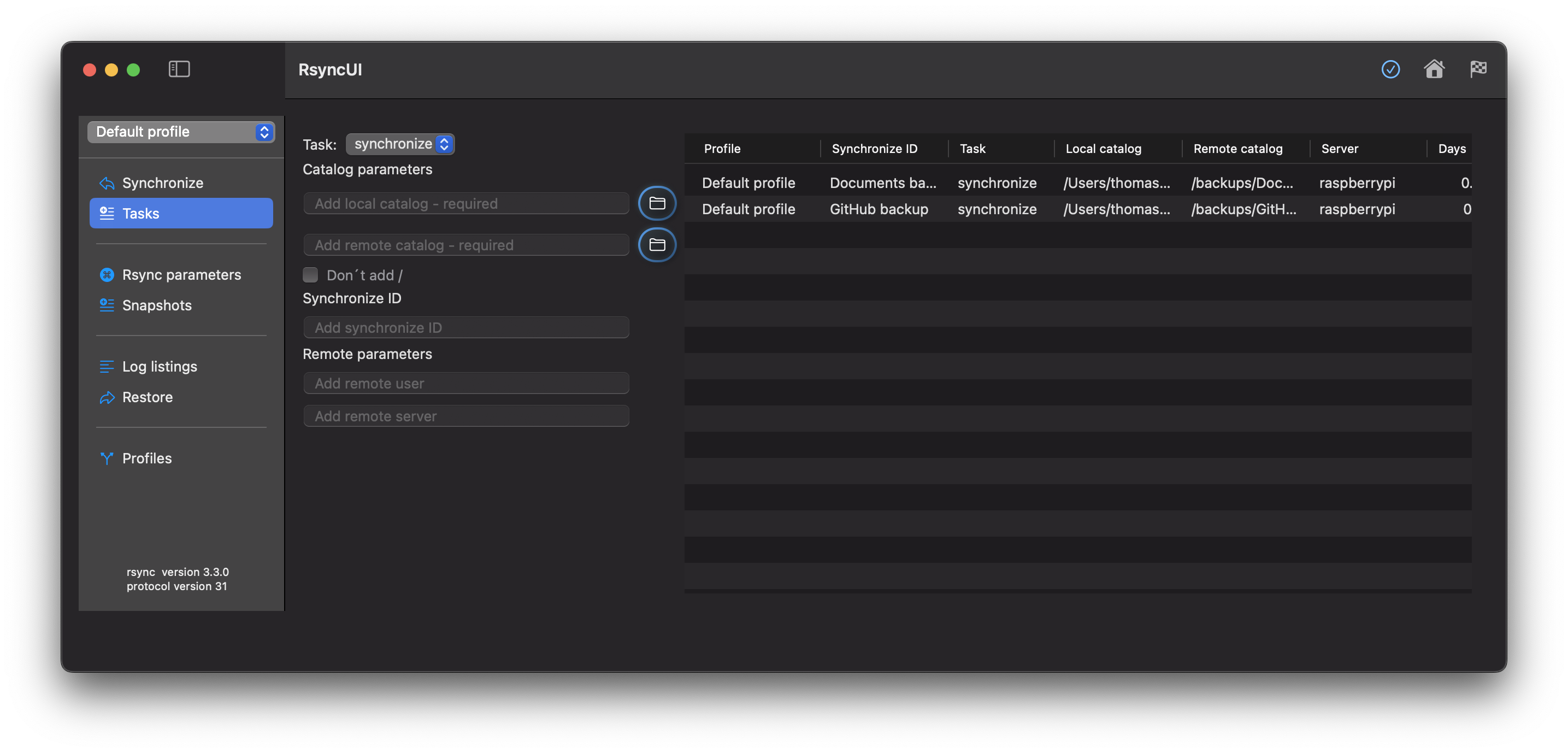
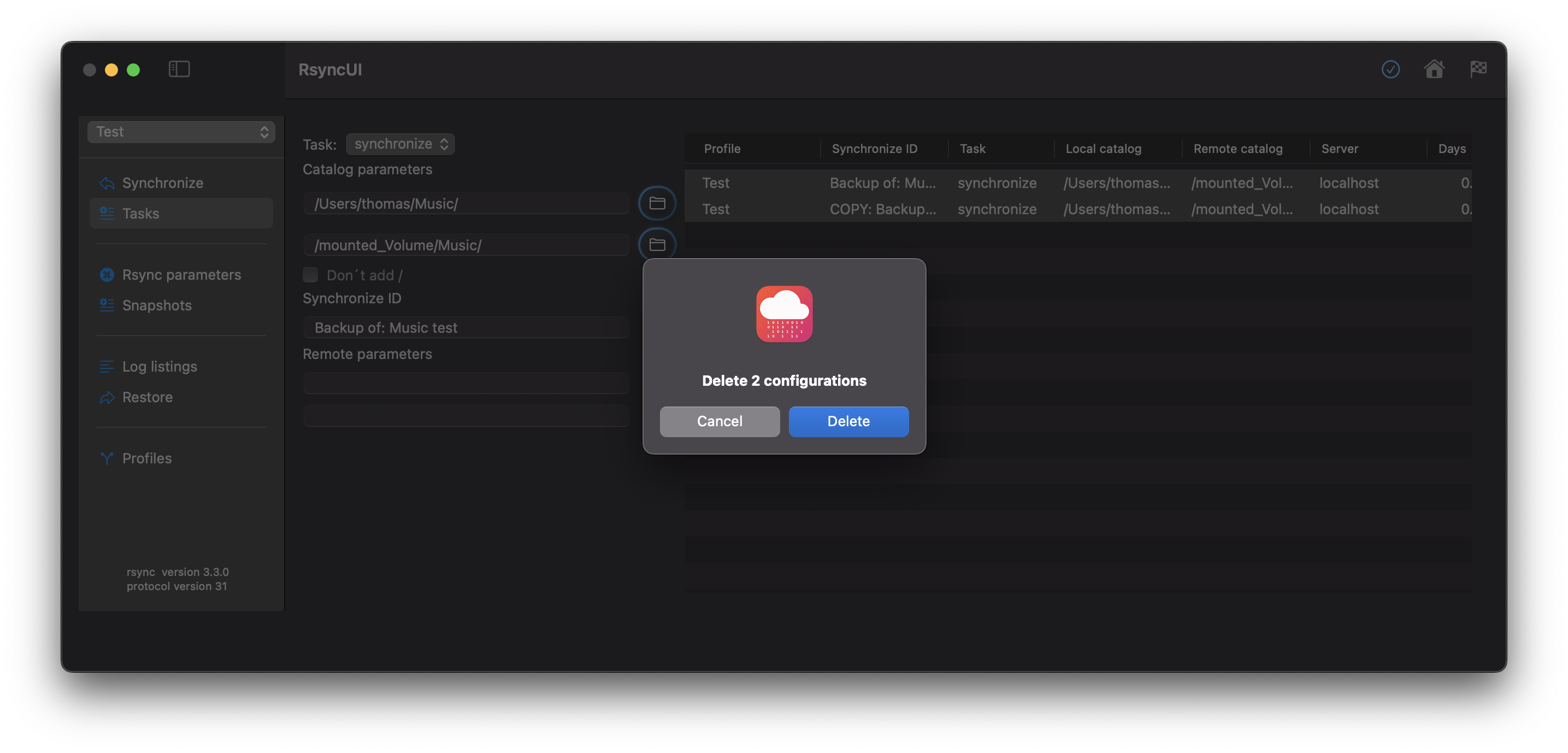
Delete Tasks
Select the tasks you wish to delete and delete them from the Edit menu or by pressing the backspace button.
Data about Tasks
The following data pertains to tasks:
Action
- synchronize - default action for synchronize data from a source to a destination
- snapshot - saves changes and deletions prior to a synchronize operation
- syncremote - synchronize data from a remote source to a local folder
- when adding a
syncremoteaction, add the local folder first and the remote folder as second, RsyncUI will do the flip
- when adding a
Folder Parameters
- Source folder - required field
- Destination folder - required field
Trailing /
- Add - add a trailing slash to both the source and destination
- Do not add - do not add a trailing slash, or if added remove it
- Do not check - do not check for trailing slash or not on either the source or destination
Synchronize ID
- Synchronize ID - informal tag for the task
Remote Parameters
- Remote username - username for login to the remote server
- Remote server - either server name or IP address for the remote server
Copy and Paste Tasks
Shortcuts for copy and paste are ⌘C and ⌘V, or from the Edit menu. The copy and paste operation creates a copy of the selected tasks and marks them with the “copy” status. The copied tasks retain all parameters.
2 - Update tasks
To update a task, select it and press the update button to write changes to storage.
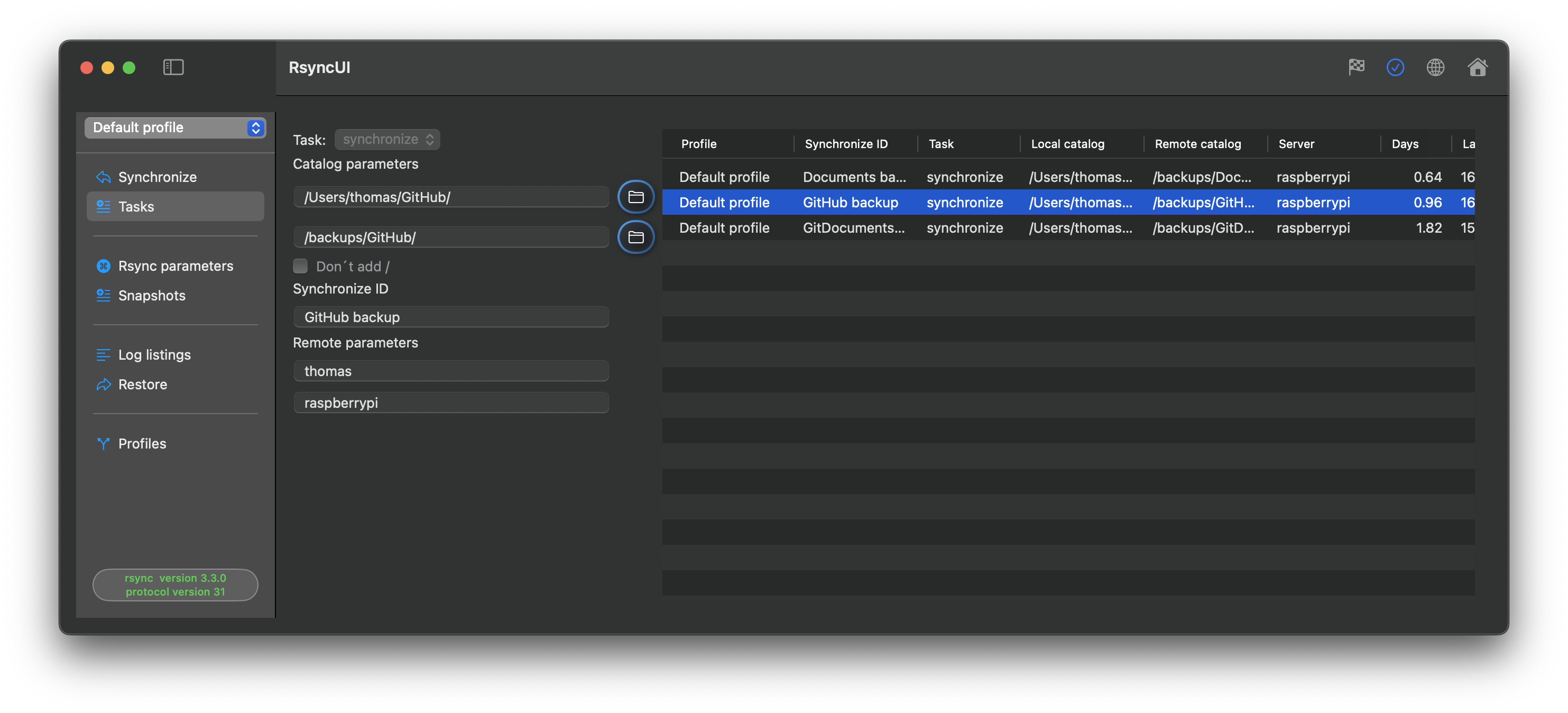
Editing a task
Select the task in the task list. The Inspector opens on the right with tabs for Edit, Parameters, Log Records, and Verify Task. Make your changes in the relevant tab, then press the update button to save.
After changing any task parameter, always verify the task with a --dry-run before executing it. Select “Verify tasks” from the primary Sidebar menu.
Halting and releasing tasks
Right-click a task and select Halt to temporarily disable it. A halted task shows a red stop sign in the action column and is excluded from estimates and execution. Right-click again and select Release to restore it; the task resumes with its original type.