Several settings can be adjusted. After changing a setting, save the changes to keep them next time you use RsyncUI. Access your settings with the shortcut ⌘,.
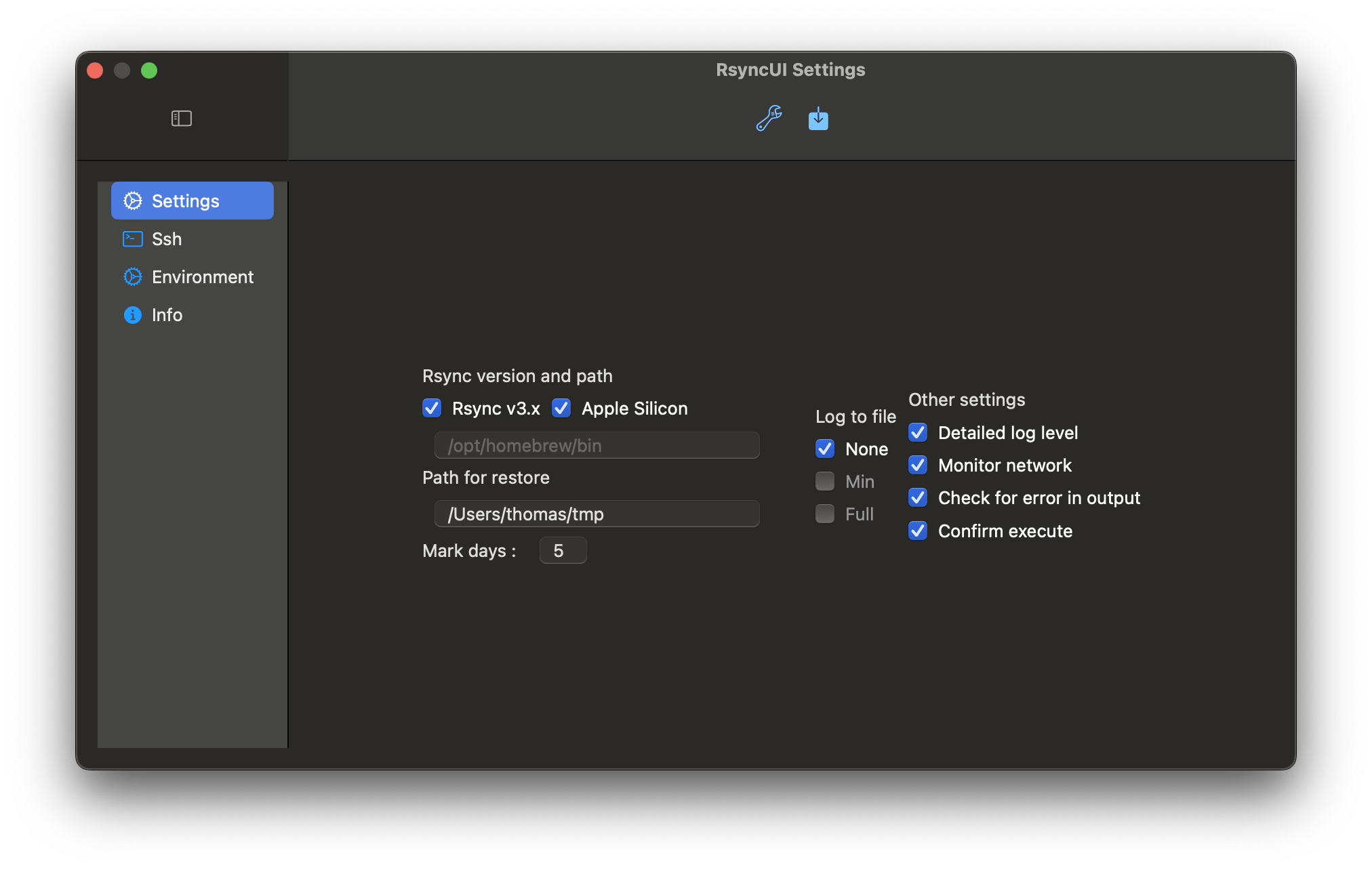
Rsync and path — settings for the rsync binary and paths
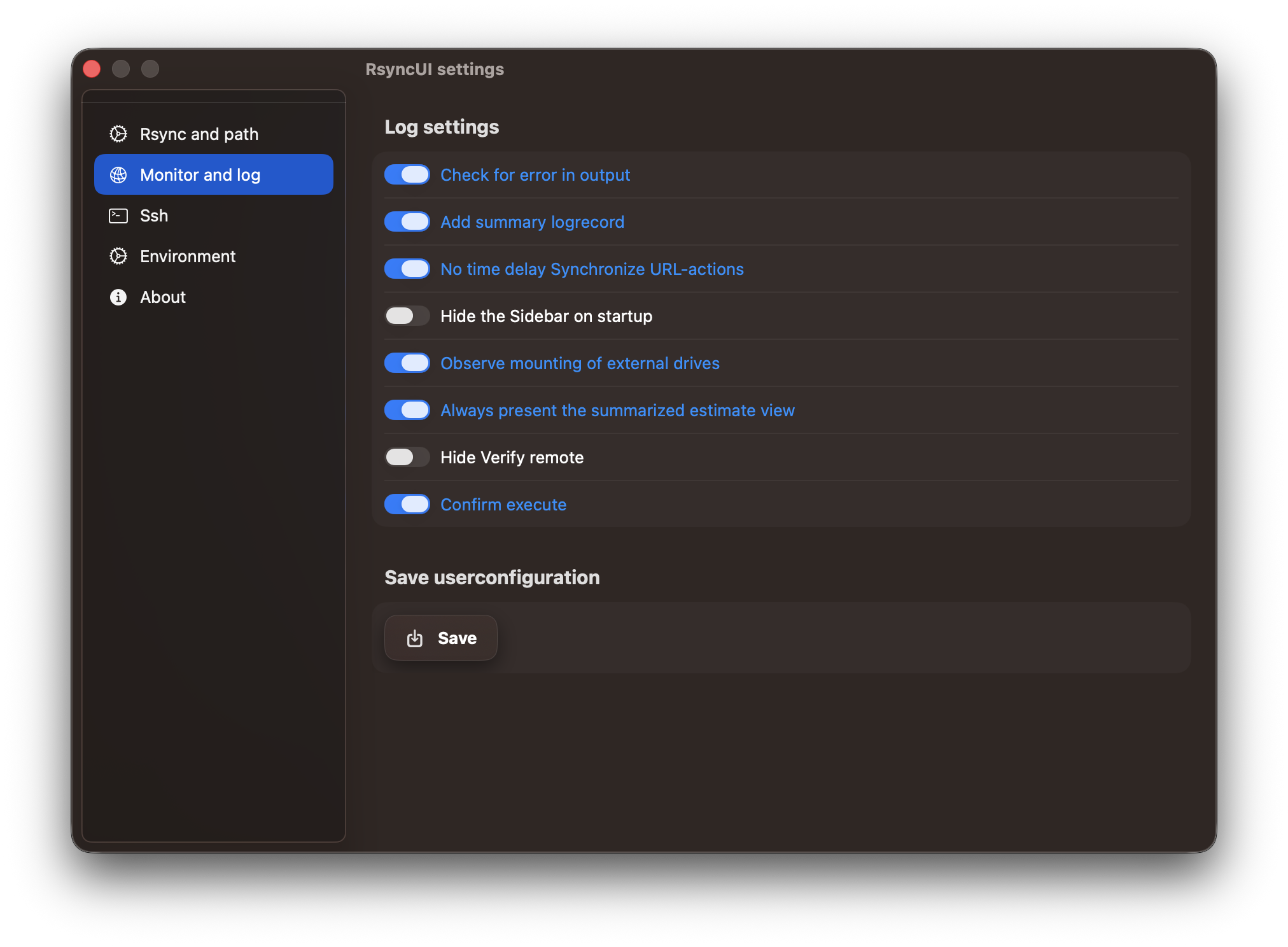
Log settings — logging behaviour and UI options
For SSH configuration, see the SSH Setup section.
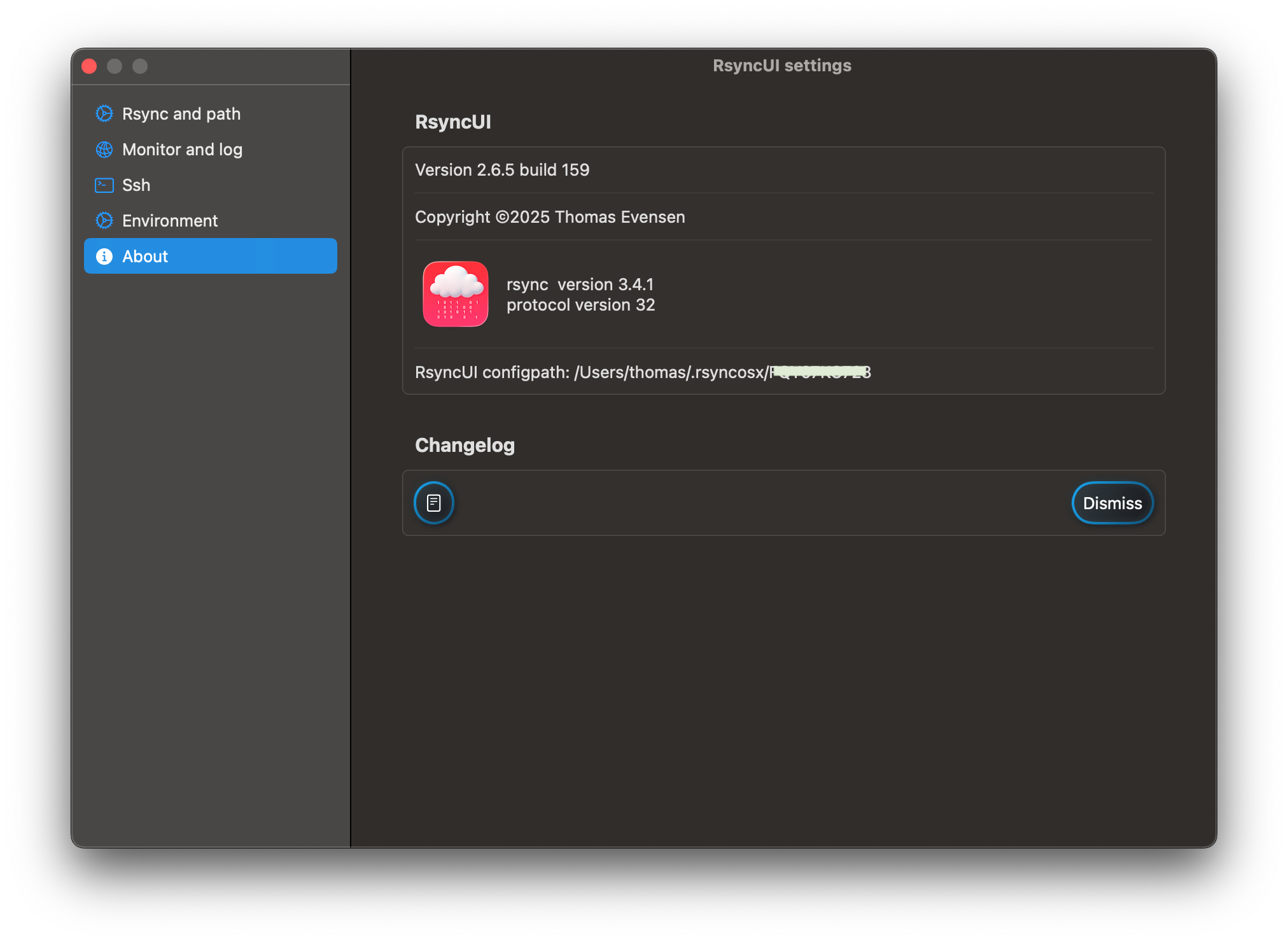
The “About” section displays the version of rsync in use and the path for storing and retrieving configurations to the permanent storage location.
1 - Rsync and path
After changing a setting, save the changes to keep them next time you use RsyncUI.
Version rsync
It is recommended to install the latest version of rsync. RsyncUI provides direct path support for Homebrew on both Apple Silicon and Intel Macs. RsyncUI will determine the type of Mac you are using. The default path for Homebrew is:
Intel-based Mac: /usr/local/bin
Apple Silicon: /opt/homebrew/bin
Path rsync
The snapshot and syncremote features require the latest rsync. If an updated or new rsync is not installed by Homebrew, set the path manually.
If Rsync v3.x is enabled, set the optional path if not installed by Homebrew.
Any version of rsync will work, but only the default macOS versions and the latest rsync release have been tested
testing and verification ensure accurate parsing of rsync output
Path for restore
Preset temporary path for restoring single files and directory
Preset temporary path for a full restore
Mark days after
Tasks with an execution date older than the number of days are marked red.
Backup configurations
You can back up the current setup, configurations, and logs (including all profiles) at any time by clicking the wrench button. The backup is copied to your Documents directory with a timestamp: -month-day-year/hour/minute.
The backups are located in your Documents directory: $HOME/Documents/RsyncUIcopy-05-06-2024/08/21
2 - Log settings
After changing a setting, save the changes to keep them next time you use RsyncUI.
Check for Errors in Output:
default: off
if the word “error” is found in rsync output, you are notified
Add Summary Log Record:
default: on
a summary of each synchronization is added to the log records; view “Log Listings” from the Sidebar
No time delay Synchronize URL-actions
default: off
if on, estimated tasks triggered by URL-actions will synchronize without any chance to abort
Hide the Sidebar on startup
default: off
the sidebar can be hidden; when on, the sidebar is hidden when RsyncUI starts
Observe mounting of external drives
default: off
automatic profile selection when RsyncUI detects a new mount of a local attached disk
Always present the summarized estimate view
default “on”
after an estimate, by selecting the Magic Wand on toolbar Synchronize task view, always present the summarized view
Hide Verify remote:
default “on”
refer to section “Verify remote”, this is a kind of special function, default not enabled
Use two tables Inspector:
applies to main Sidebar menu Tasks
utilize one or two tables to select Inspector for editing tasks and parameters
Silence missing stats
default: off
stats is the summarized output from rsync; if on, RsyncUI notifies if stats are missing after termination
in version 2.8.4, missing stats are unlikely due to the new RsyncProcessStreaming
Validate arguments
default: on - validates default parameters
if the --delete parameter is included in the task configuration, the validation checks its presence or absence based on the task’s state, which specifies whether a delete operation is required
other default validated parameters include --archive, --compress, and --dry-run
the --archive parameter is always enabled
the --compress parameter is only applicable for remote tasks
if the user requests an estimate, the validation checks that the --dry-run parameter is included within the arguments
Confirm Execute:
see below
Error Output from rsync:
Sample of an error in output from rsync. If the switch “Check for error in output” is enabled, RsyncUI writes the output to the log file and alerts the user about any errors in rsync.
The log file is stored at $HOME/.rsyncosx/macserial/rsyncui.txt. The log file can be opened from the main view.
Confirm Execute
This option is only available if version 3.x of rsync is enabled.
The confirm dialog appears when the number of files to synchronize is comparable to a new task. Sometimes a remote server or local disk becomes unavailable or you forget to attach it. If you start a synchronize task when the destination is unavailable, rsync may think it’s a new full sync and prompt you to confirm or abort.
If a remote server is unavailable, rsync will likely complain and generate an error. If the check for error in output option is enabled in the user settings, the rsync error messages written to the log and an Alert will be displayed.
If a local disk is not attached, rsync will attempt to synchronize the data to the /Volumes/ directory on your Mac. This directory is typically where macOS mounts local attached disks.
/dev/disk5s2 on /Volumes/Import bilder (apfs, local, nodev, nosuid, journaled, noowners)/dev/disk6s1 on /Volumes/Backups (apfs, local, nodev, nosuid, journaled, noowners)
Below the local attached volume is not connected, and the estimate may interpret this as a new synchronize task. If you have simply forgotten to attach the disk, you do not want RsyncUI to synchronize data to the /Volumes directory.