Essential information to get started with RsyncUI. Read these pages first — they cover prerequisites, key warnings, and known limitations.
1 - Important
Before using RsyncUI, review these key notes.
The interface may feel challenging if you are new to the rsync command-line tool. RsyncUI focuses on making rsync easier to use, not on teaching every rsync concept.
Not a backup tool for everyone
RsyncUI specializes in synchronization and file management. The command-line tool rsync performs the actual work. If you need a full system backup tool that creates complete disk images, RsyncUI is not the right fit.
Delete parameter
The --delete parameter keeps the destination in exact sync with the source. When a file is removed from the source, rsync removes it from the destination. With --delete disabled, the destination will accumulate files removed from the source.
Know whether --delete is on or off before you run; it controls whether the destination mirrors the source.
As a safety precaution, --delete is not enabled by default on new tasks. Turn it on if you need the destination to mirror the source.
Add and remove the delete parameter
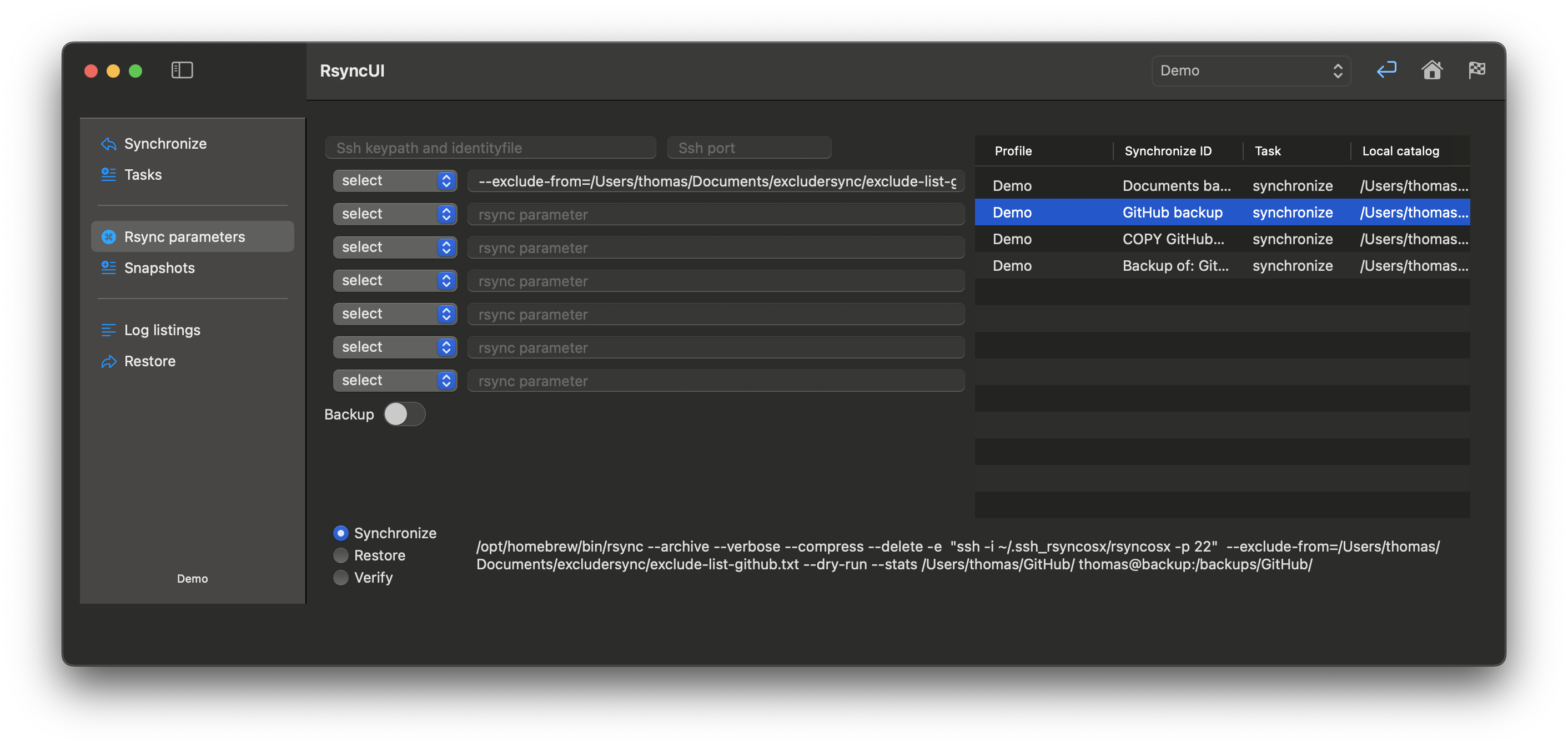
Select Parameters tab within the Tasks menu, select the task, and toggle Add –delete parameter (ON means included). After toggling, remember to update the task.
- if ON, the –delete parameter is included
- if OFF, the –delete parameter is removed
Always verify new task
Before running a new task, perform a --dry-run and inspect the result. If you set an empty source and --delete is enabled, rsync will delete all files in the destination.
Incorrect rsync parameters can delete data, and RsyncUI does not block such choices. See Getting started or Tasks for how to verify a task before running it.
Temporary halt tasks
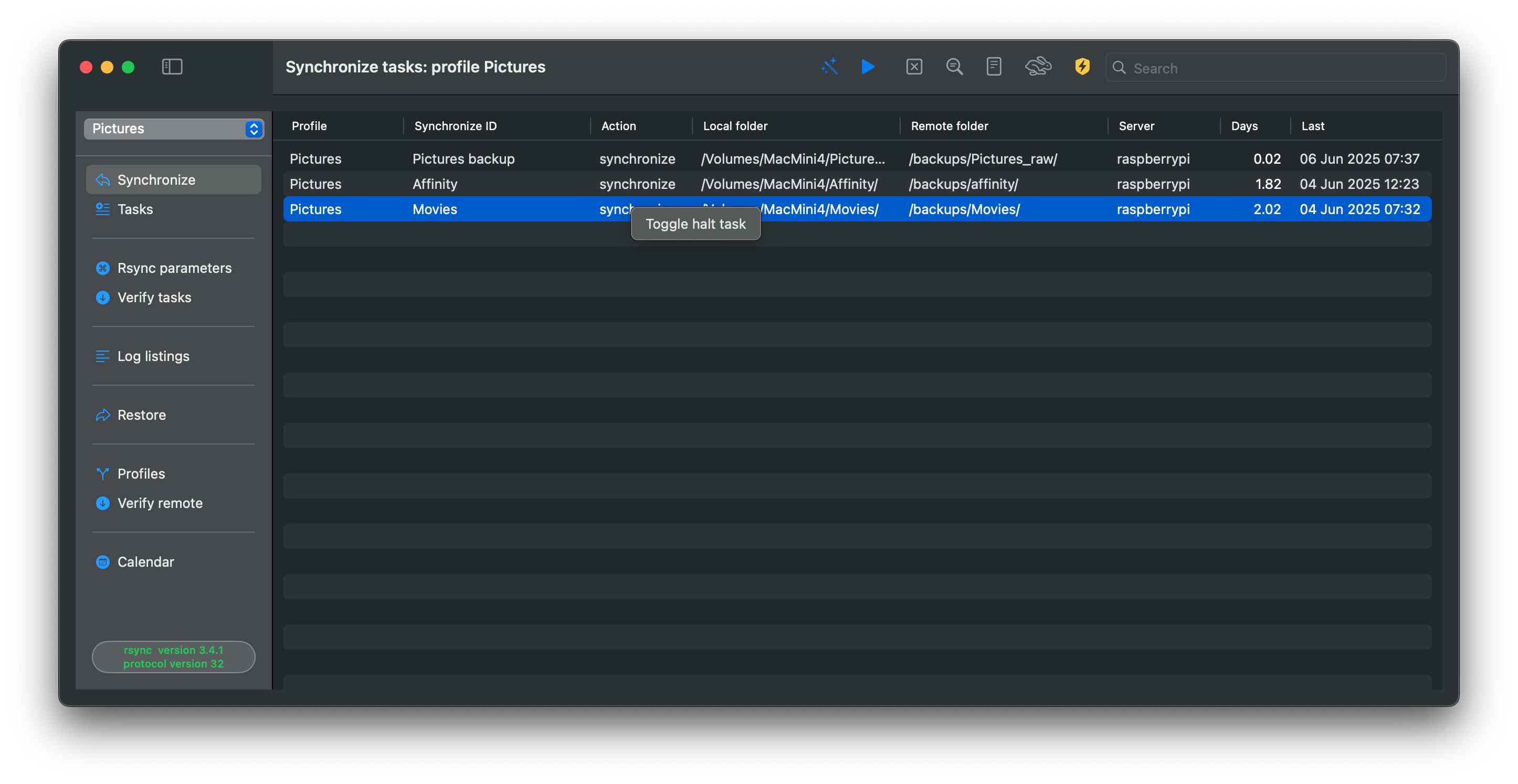
You can temporarily halt a task. In the Synchronize view, right-click a task to halt it; the task keeps its type when resumed. Halted tasks display a red stop sign in the action column.
Two options to save updates to data
These options apply to the data synchronized by RsyncUI. By enabling either of these options, you can save changes to data, such as deletions or updates, prior to a synchronization task.
There are two options to automatically save changes to data when it is changed or deleted.
Option 1: rsync supports a backup flag. Switching this on in the Rsync parameters view adds the required parameters. You may change the backup directory to any location you want.
Option 2: Snapshots require rsync 3.x. See Snapshots for details on enabling and using them.
2 - Limitations
There are a few limitations to keep in mind. None will corrupt data, but they may interrupt synchronization.
Long running tasks and sleep
When the Mac sleeps, RsyncUI tasks stop. An active rsync process does not prevent the Mac from sleeping. If sleep occurs during synchronization, rsync will likely error and stop. Restart the task in RsyncUI; rsync will resume from where it left off.
If this happens, RsyncUI will not log the run because it only logs after receiving a termination signal from rsync.
Adjust your Mac’s sleep settings to avoid interruptions.
Sleep interrupting an active rsync process will also affect scheduled tasks when using the Calendar function.
The Schedule
A note about scheduling: the scheduler relies on the Timer library. See Schedule for details.
The scheduler automates chosen tasks while RsyncUI is running and you are logged in. If the Mac sleeps and a scheduled task is missed, it will be listed in the Schedule view after the Mac wakes.
Aborting Tasks
RsyncUI launches the rsync command-line tool and monitors it.
You can abort a task at any time. Allow the abort to complete before starting another task; otherwise RsyncUI may become unresponsive.
3 - Getting started
New users should read Important first, then Latest version of rsync for installation guidance, then Tasks to create their first task.
Concealing Actions
Concealing actions reduces menu clutter and keeps focus on common tasks.
Use
⌘Sor the Task main menu to show or hide Charts, Quick task, log view, and other options that are hidden by default. The primary Sidebar menu is also context-sensitive.
New Tasks and Verification
RsyncUI can synchronize data to:
- local attached disk
- remote servers on the Internet or local LAN
- requires passwordless login by ssh-key
Local attached disk
To sync to a local attached disk, connect the disk, add source and destination, and you are ready for your first task.
Remote server and passwordless login
To sync to a remote server (internet or LAN), set up passwordless SSH. With SSH keys in place, add source, destination, login id, and server name and you can synchronize. Without passwordless login, additional setup is required.
Verify tasks
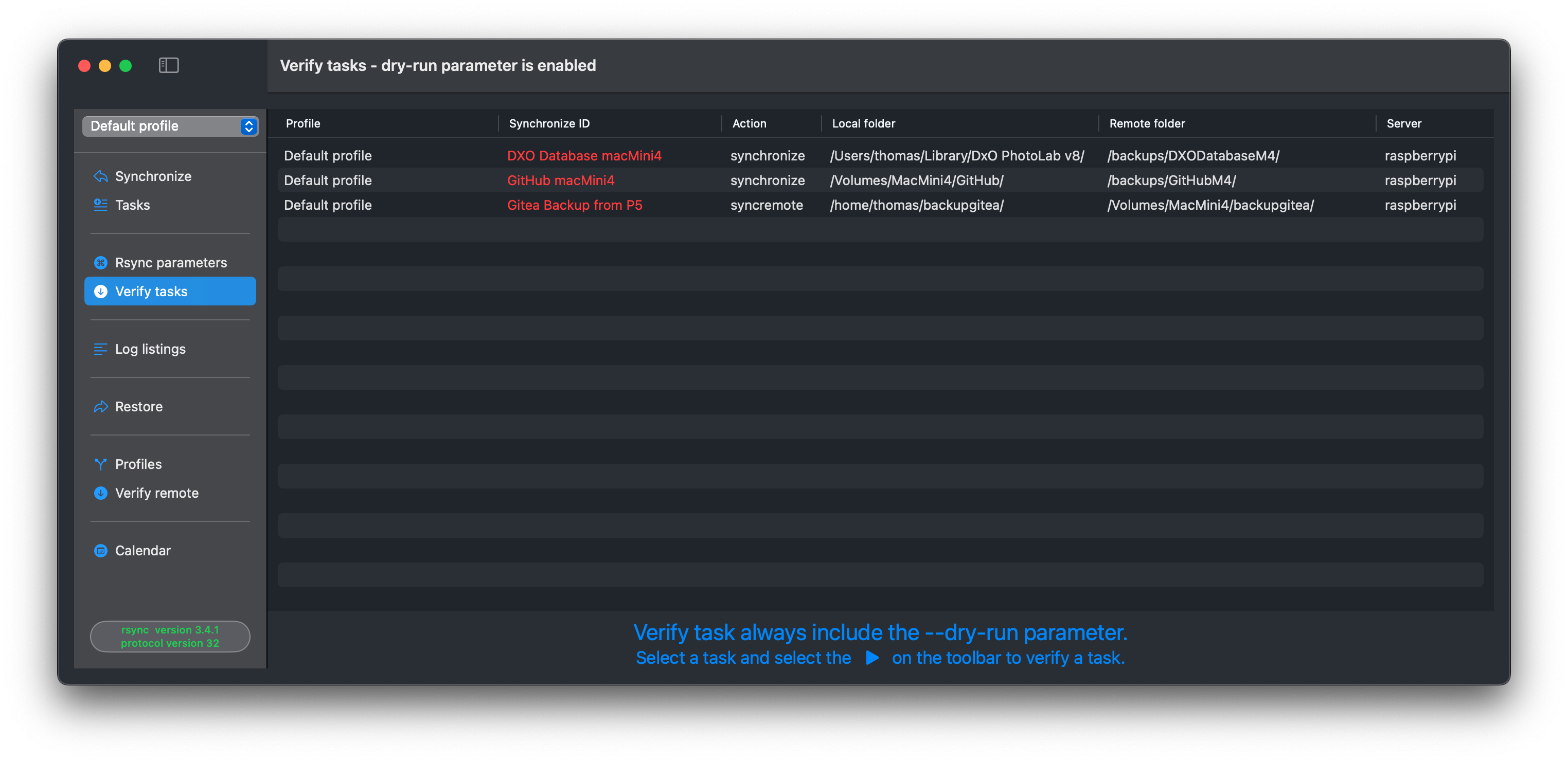
Always verify a new or changed task. After adding or editing a task, or after changing rsync parameters, select “Verify tasks” from the primary Sidebar menu.
Select the task and press the play button on the toolbar. Executing the play button includes the –dry-run parameter for rsync, which is an estimation run.
Aborting tasks
RsyncUI executes the command-line tool rsync and monitors progress and termination.
You can abort a task at any time. Allow the abort to complete and cleanup to finish before starting another task; otherwise the app may become unresponsive.
Errors in tagging data
Sometimes you may get the error:
There are errors in tagging data
for synchronize ID XXXX
Most likely number of rows
> 20 lines and no data to synchronize
The message confirms that all data appears synchronized. RsyncUI bases this on rsync summary output. If there are more than ~20 lines yet no data tagged for sync, the message reminds you to double-check. To verify, run the task without an estimate.
Version 3.x of rsync:
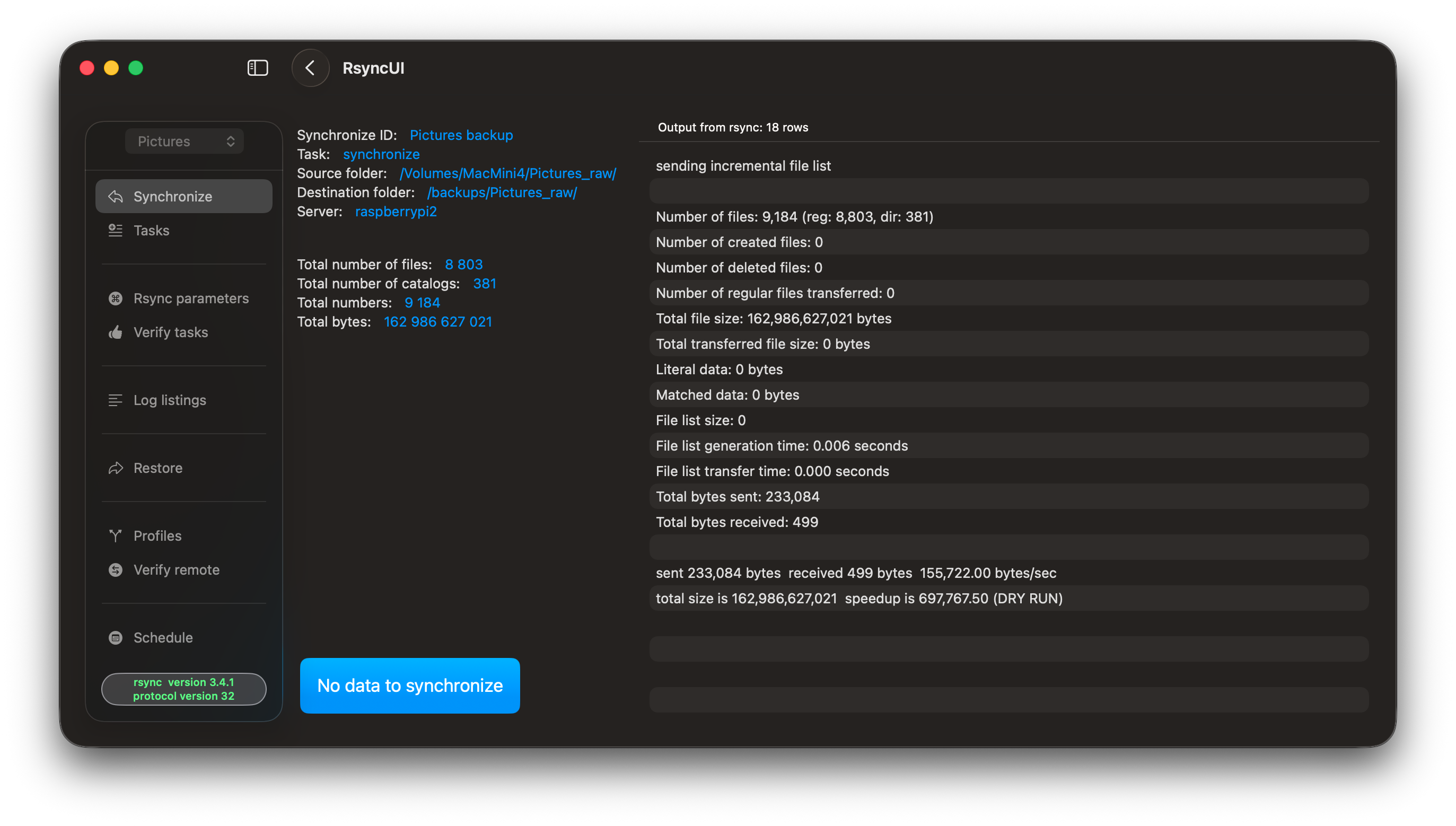
Version openrsync:
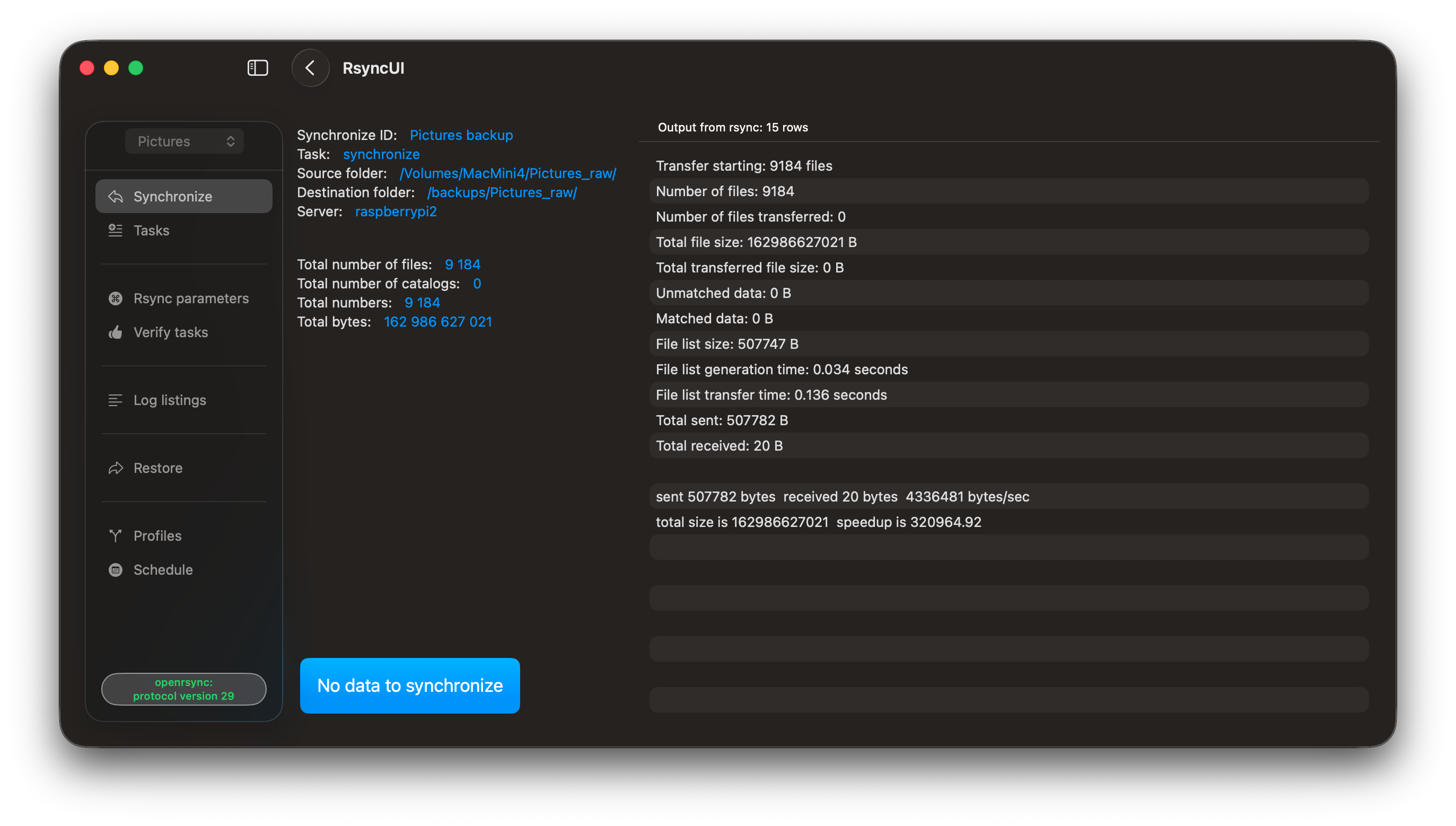
The Sidebar Menu options
Two Sidebar menu options depend on task properties. If any task meets the requirement, the option appears.
- Snapshot: available only for snapshot tasks
- requires rsync 3.x
- Restore: available for synchronize and snapshot tasks where the destination is on a remote server
- also available for openrsync, but only for synchronize tasks
If the Sidebar is hidden, click the Hide Sidebar icon (top left) or toggle Hide the Sidebar on startup in Settings.
4 - Latest version of rsync
The default /usr/bin/rsync differs between macOS versions:
- macOS Sonoma: Uses rsync version 2.6.9 (released November 2006)
- macOS Sequoia and later: Use
openrsync, a BSD-licensed implementation compatible with rsync protocol 29 and version 2.6.9
I strongly recommend installing the latest version of rsync (version 3.x) to take full advantage of RsyncUI’s features.
Installing rsync via Homebrew
Install the latest version using Homebrew:
brew install rsync
After installation, configure RsyncUI:
- Navigate to Settings and select Rsync and path
- Enable Rsync ver3.x
- RsyncUI will automatically set the correct path
Note: RsyncUI’s snapshot and sync remote features require rsync version 3.x due to limitations in version 2.6.9.