This is the multi-page printable view of this section. Click here to print.

Return to the regular view of this page.

Some advanced features

There are a few more or less advanced features in RsyncUI. If you are new to RsyncUI, new to rsync, it is adviced to learn the basics before utilizing the more advanced features.

Halting tasks

By right-clicking on a task, on column Synchronize ID or Task, it can be halted or released from halted status. A halted task will be marked and not available for estimate or execute. When releasing a task from halted status, it remember which kind of task it was before halted.

1 - URL commands

Deep links facilitate direct access to application features via URL links. By utilizing deep links, users can execute an estimate and synchronize actions in a single click. Deep links in RsyncUI enable the grouping of actions that typically require multiple user inputs.

There are three methods of using deep links:

  • enable RsyncUI widgets
  • use URL functions direct within RsyncUI
  • save an URL-link in e.g. Notepad

RsyncUI Widget

One widget is embedded in RsyncUI:

  • estimating and synchronizing

The widget retrieve a saved URL link from storage. Within the Tasks view, there is a view for URL. Within this view, you can save the required URL. The widgets display whether a validated URL is present. To enable the widgets on macOS, click on the date and time icon located in the upper right corner of your screen. Edit the widgets and select RsyncUI. Then, add the widgets.

After enabling the widget, a single click on the widget will launch RsyncUI and execute the corresponding action. To modify the URL, update and save the new URL.

Execute URL´s from within RsyncUI

Deep links also enable automation of actions within RsyncUI. A single click on the toolbar icon executes the URL action. RsyncUI generates the necessary URL based on the loaded profile and the required action. The two yellow toolbar icons allow execution of URL commands from within RsyncUI, as demonstrated in section above.
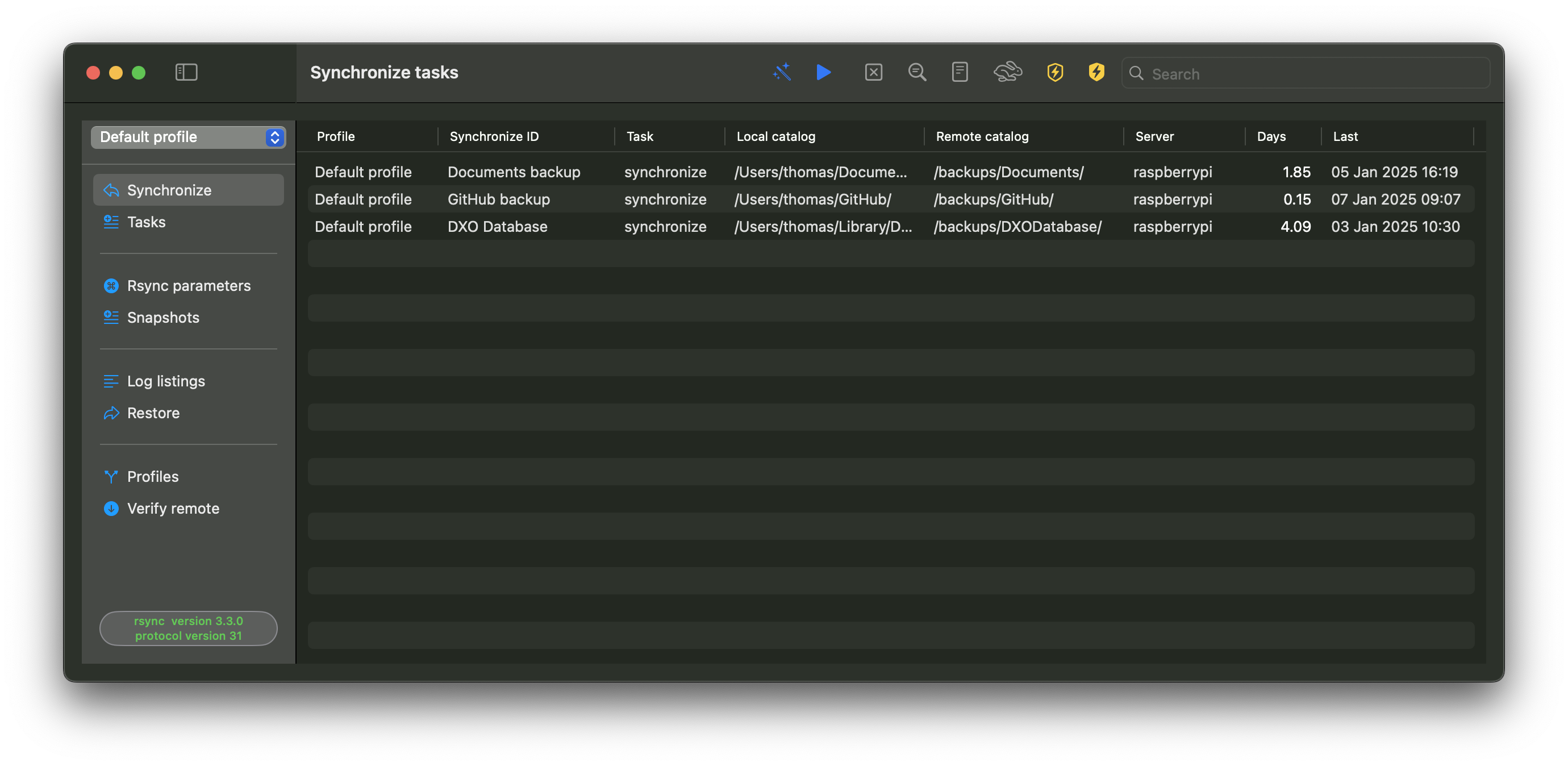
URL´s and Notepad

URL´s must start with rsyncuiapp://:

ActionURL
Estimate all tasks, automatically synchronize datarsyncuiapp://loadprofileandestimate?profile=Pictures
  • Estimate all tasks and automatically synchronize data
    • load profile, estimate all tasks and automatically synchronize data

View URL

You may copy the correct URLs and save the URLs in e.g Notepad for easy access to start a synchronize task.

If RsyncUI encounters an invalid URL link, it will generate errors. Only well-defined URLs (specifically those supported by RsyncUI) are processed and executed. All URLs are validated as valid, but only defined URLs for RsyncUI are actually executed.

2 - Verify remote

Typically, a synchronize action operates in a one-way direction of data. Local data is synchronized to a backup media, such as an attached disc or a remote server. Restoring data, for instance, involves retrieving data from a backup when local data has become corrupted or inaccessible.

If you are using multiple Macs, as I do, and all Macs synchronize data to the same remote storage, there may be challenges maintaining synchronization and preventing data loss, particularly if the remote storage is not a Git server, such as GitHub and Gitea. If the remote destinations are stored on a Git server, regular git push and git pull commands will suffice.

Git is a superior tool for version control. However, in certain situations, creating a Git repository may not be feasible, and this function may prove useful. As a reminder, the Verify function is designed for multiple Macs synchronizing data to a single remote server as a backup. It also assists in deciding whether to push or pull changes to keep the local repository updated.

Synchronization of Multiple Macs to a Remote Server

I have over 3,000 bird photos (130 GB) from the past four years that are synchronized using RsyncUI to a local remote server at home. New photos are added, old photos are deleted, and updates are made to sidecars of the photos. As long as I was using only one Mac, all updates were made on that Mac. However, with two Macs, I now use both Macs to work on my photos. When I synchronize my changes, I need to transfer those changes to my second Mac.

Arguments for rsync

The following arguments are used in both push and pull.

  • --itemize-changes - output change-summary for all updates
  • --dry-run - rsync execute an estimate run
  • --update - evaluates the timestamp

The result from the pull command is subtracted from the result of the push command. Conversely, the push command is subtracted from the result of the pull command. After both subtractions, the resulting arrays are compared based on the number of rows.

The outcome is as follows:

  • If pull has more data than push, it is likely that the destination is more up-to-date than the source
  • If push has more data than pull, it is likely that the source is more up-to-date than the destination
  • If the number of rows is equal, it is likely that the source is more up-to-date than the destination

If there are zero rows, most likely, source and destination are in sync.

Itemized output - push or pull

The parameter -i or --itemize-changes produces details about each file. The format of the output is:

YXcstpoguax
|||||||||||
`-------------------------- the TYPE OF UPDATE:
 ||||||||||   <: file is being transferred to the remote host (pushed).
 ||||||||||   >: file is being transferred to the local host (pulled).
 ||||||||||   c: local change/creation for the item, such as:
 ||||||||||      - the creation of a directory
 ||||||||||      - the changing of a symlink,
 ||||||||||      - etc.
 ||||||||||   h: the item is a hard link to another item (requires --hard-links).
 ||||||||||   "+" - the file is newly created
 ||||||||||   .: the item is not being updated (though it might have attributes that are being modified).
 ||||||||||   *: means that the rest of the itemized-output area contains a message (e.g. "deleting").
 ||||||||||
 `----------------------------- the FILE TYPE:
  |||||||||   f for a file,
  |||||||||   d for a directory,
  |||||||||   L for a symlink,
  |||||||||   D for a device,
  |||||||||   S for a special file (e.g. named sockets and fifos).
  |||||||||
  `--------- c: different checksum (for regular files)
   ||||||||     CHANGED VALUE (for symlink, device, and special file)
   `-------- s: Size is different
    `------- t: Modification time is different
     `------ p: Permission are different
      `----- o: Owner is different
       `---- g: Group is different
        `--- u: The u slot is reserved for future use.
         `-- a: The ACL information changed

3 - Passwordless login

To synchronize data to a remote server using RsyncUI, passwordless login via SSH key authentication is required. RsyncUI does not support password-based authentication during data synchronization. SSH key authentication is generally considered more secure than password-based authentication.

If default values for RSA-based SSH key authentication are used, no additional information about the SSH key is required in RsyncUI. However, it is necessary to provide information if a custom SSH keypath, identity file, or port number is used.

The SSH keypath and identity file are specified as follows:

-e "ssh -i ~/.keypath/identityfile -p NN"

where:

  • -i ~/.keypath/identityfile is the SSH keypath and identity file
  • -p NN is the port number used for communication (default port 22)

To use custom SSH key and keypath data, add the following information to RsyncUI in the settings:

To configure the SSH keypath and identity file, refer to the user configuration in the SSH settings. When enabling a custom SSH keypath and identity file, please ensure they follow this format:

~/.mynewsshdirectory/mynewkey

For example:

~/.ssh_rsyncosx/rsyncosx

The path must start with ~ followed by /. RsyncUI will verify that the SSH keypath begins with ~ and contains at least two forward slashes (/) before saving the new SSH keypath.

The rsync command to synchronize my Documents directory to my Raspberry Pi server is set by RsyncUI as:

/opt/homebrew/bin/rsync --archive --verbose --compress \
-e "ssh -i ~/.ssh_rsyncosx/rsyncosx -p 22" --stats \
/Users/thomas/Documents/ thomas@raspberrypi:/backups/Documents/

For more information on passwordless login, please refer to the Tools for passwordless login section.

4 - Tools for passwordless login

RsyncUI uses the standard SSH tools ssh-keygen and ssh-copy-id to help you establish passwordless login to remote servers via SSH key authentication.

SSH Key Methods

RsyncUI supports two approaches:

  1. Default SSH keys: Uses the standard RSA key location (~/.ssh/id_rsa)
  2. Custom SSH keys: Uses a user-specified location (e.g., ~/.ssh_rsyncosx/rsyncosx)

When using default keys, RsyncUI doesn’t add extra SSH parameters to rsync commands. Custom keys require additional parameters to tell rsync where to find them.

Step-by-Step: Creating Custom SSH Keys

Step 1: Create the SSH Directory

cd
mkdir .ssh_rsyncosx

Step 2: Generate the Key Pair

ssh-keygen -t rsa -N "" -f ~/.ssh_rsyncosx/rsyncosx

Parameters explained:

  • -t rsa - Creates an RSA-based key pair
  • -N "" - Sets no password (empty passphrase)
  • -f ~/.ssh_rsyncosx/rsyncosx - Specifies where to save the keys

Step 3: Copy Public Key to Server

ssh-copy-id -i ~/.ssh_rsyncosx/rsyncosx.pub -p NN user@server

Replace:

  • NN with your SSH port number (default is 22)
  • user with your remote username
  • server with your server address

Step 4: Set Correct Permissions

chmod 700 ~/.ssh_rsyncosx

Step 5: Configure RsyncUI

Add your custom SSH keypath and identity file in RsyncUI’s user configuration. RsyncUI will automatically apply these settings.

You can also set custom SSH parameters for individual tasks, which will override the global settings.

5 - Export and import

Tasks can be exported and imported between profiles and to new Macs. Select the “File” menu and then choose “Export and import.”

6 - Snapshots

In every snapshot task, RsyncUI stores the next available snapshot number. The snapshot number is a sequential number incremented by one after each snapshot task execution. The rsync command automatically creates the next snapshot directory by number, and RsyncUI updates the stored snapshot number for the next run. The snapshot number is displayed as part of the log timestamp.

If a file named “file.txt” is saved in the initial snapshot and remains unchanged or is deleted, the “file.txt” in the latest snapshot is a hardlink to the original file in the first snapshot.

If “file.txt” is deleted from the source, the filesystem manages the hardlink appropriately during the delete operation.

In RsyncUI, the first and last snapshots are never deleted, even if all snapshots are marked for deletion.

Snapshots

A snapshot is a saved state or backup of data at a specific point in time. Each snapshot is synchronized with the source at the time of creation.

Remote Server

The rsync parameter for the next snapshot to synchronize to a remote.server is:

--link-dest=~/snapshots/n-1 /Users/thomas/data/ user@remote.server:~/snapshots/n

where:

  • n is the number of the next snapshot to be synchronized
  • n-1 is the latest synchronized snapshot
  • /Users/thomas/data/ is the source directory, only read by rsync
  • ~/snapshots/ is the destination directory where snapshots are synchronized

Local Attached Disk

The above example with a local attached disk, mounted at /Volumes/backup, is:

--link-dest=/Volumes/backup/snapshots/n-1 /Users/thomas/data/ /Volumes/backup/snapshots/n

where:

  • n is the number of the next snapshot to be synchronized
  • n-1 is the latest synchronized snapshot
  • /Users/thomas/data/ is the source directory, only read by rsync
  • /Volumes/backup/snapshots/ is the destination directory where snapshots are synchronized

Snapshot Creation

To create a snapshot task, select “snapshot” as the action in the Add tasks section. RsyncUI automatically manages the snapshot number “n” for the task. This number represents the next available snapshot number and is used to calculate the rsync parameter.

Snapshot Administration

Snapshot administration is essential for maintaining an organized and efficient backup system. It involves regularly reviewing and deleting unnecessary or outdated snapshots to prevent clutter and optimize backup space usage.

Deleting Snapshots

Deleting snapshots is a destructive operation that should be performed with caution. It is important to have a plan in place to determine which snapshots to keep and which to delete. RsyncUI provides a simple plan for managing snapshot retention.

The Plan for Keep and Delete

Selecting the “Tag” button evaluates all snapshots based on the date within the log record. Based on the selected plan and date, snapshots are either tagged with “keep” or “delete.” Snapshots tagged with “delete” are also preselected for deletion. To delete the marked snapshots, select the “Delete” button.

Even if all snapshots are tagged for deletion, the first and last snapshots are never deleted. They are automatically removed from the delete list during the internal preparation for deletion.

The plan is based on three time periods, where the plan parameter affects previous months (and years):

  • The current week

    • keep all snapshots within the current week
    • the value of plan has no effect on the current week
  • The current month (minus the current week)

    • keep all snapshots for the selected day of week, e.g., all snapshots every Sunday this month
    • the value of plan has no effect on the current month
  • Previous months (and years)

    • keep the snapshot in the last week of the month for the selected day of week, e.g., the last Sunday in the month
    • if plan == Every, keep snapshots for the selected day of week, e.g., all snapshots every Sunday in previous periods
    • if plan == Last, keep snapshots for the selected day of week, e.g., all snapshots on the last Sunday of every month in previous periods

Tagging and Deleting Snapshots

It is recommended to optimize the number of snapshots regularly. Select a plan, tag the snapshots, and delete the snapshots marked for deletion.